
Customize How Bookings Appear on the Schedule
Use the Details and Color By controls to choose how bookings look on the Schedule and what information they show.
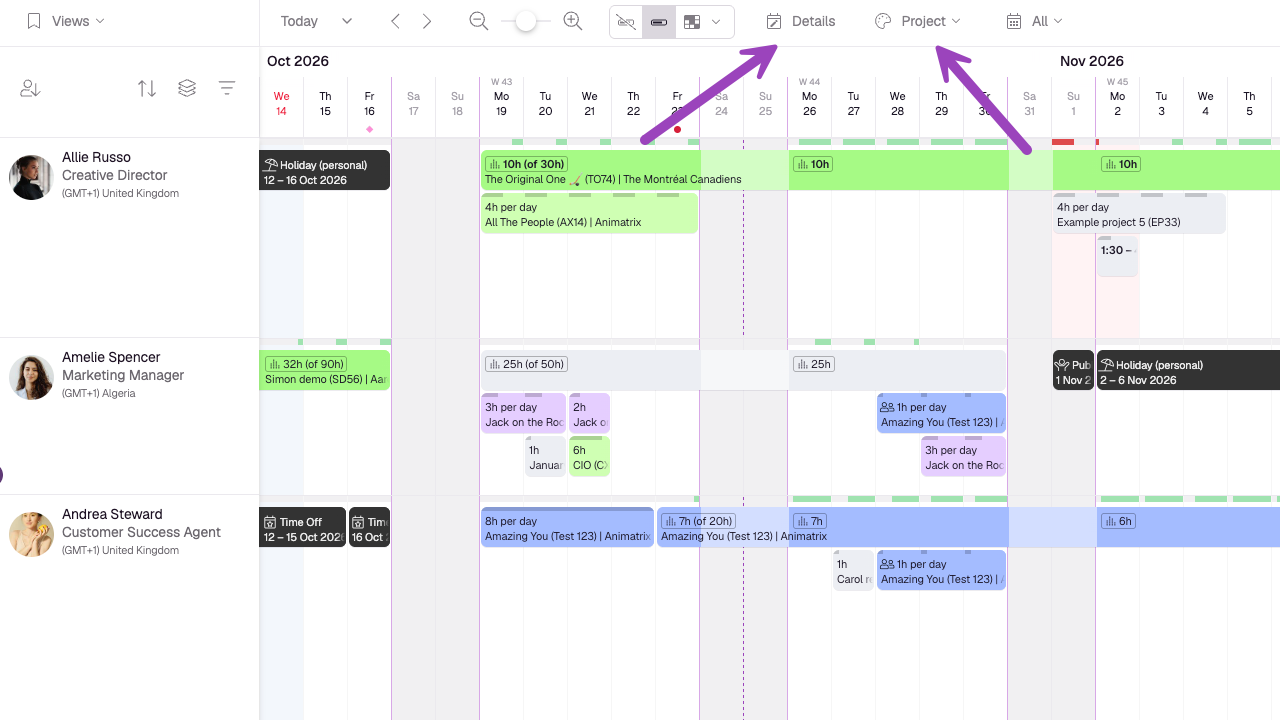
Change Booking Colors
Each person/resource, project, client, and activity type can be assigned a color. Select Color By to color bookings by project, client, booker, activity type, billable status, or an eligible custom field.
For example, selecting Color By Booker lets you quickly scan the Schedule and pick out bookings made by specific people. This is especially useful if you have several project managers and want to see who hasn't added their bookings for next week.
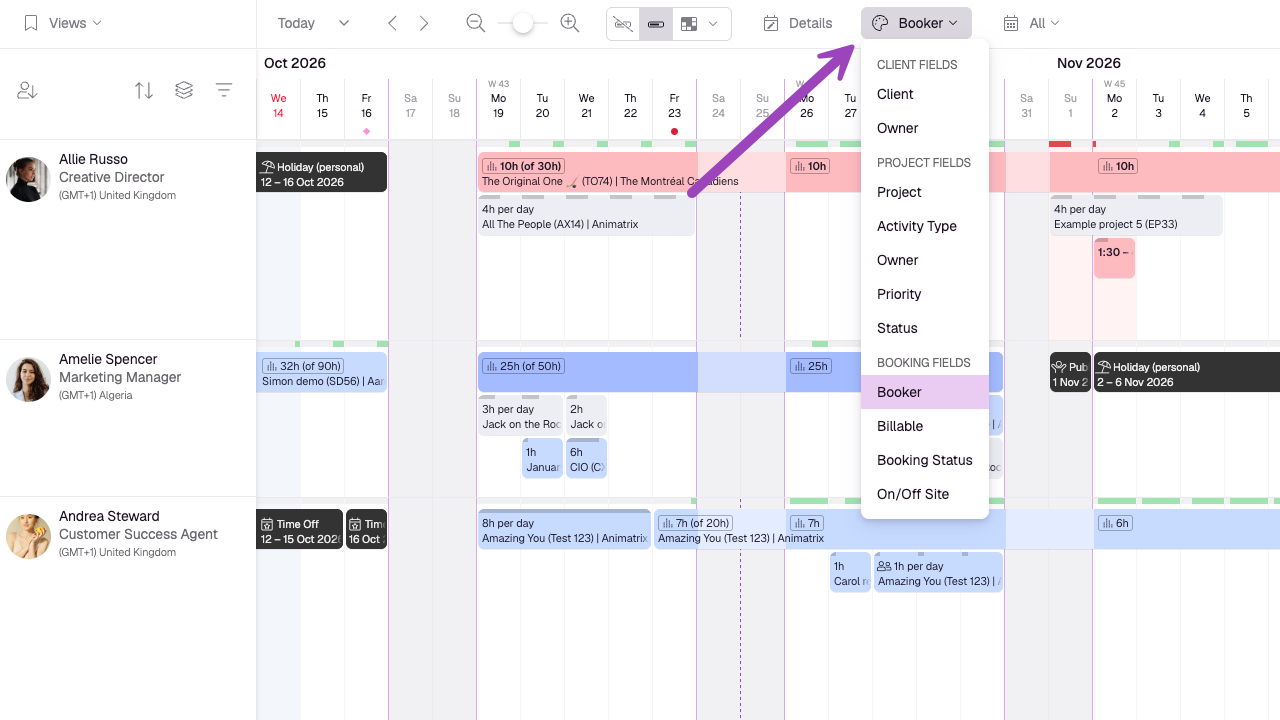
You can also color bookings by an eligible custom field. Custom fields are grouped by where they apply: Client fields, Project fields, or Booking fields. If a field applies to more than one of these, it appears under each relevant group.
When you select a custom field, bookings use the color assigned to their value for that field. If a booking has no value for the selected field, it uses the default booking color.
To make a single-select custom field available in Color By, assign colors to its values and enable Allow coloring bookings on the Schedule by this field.
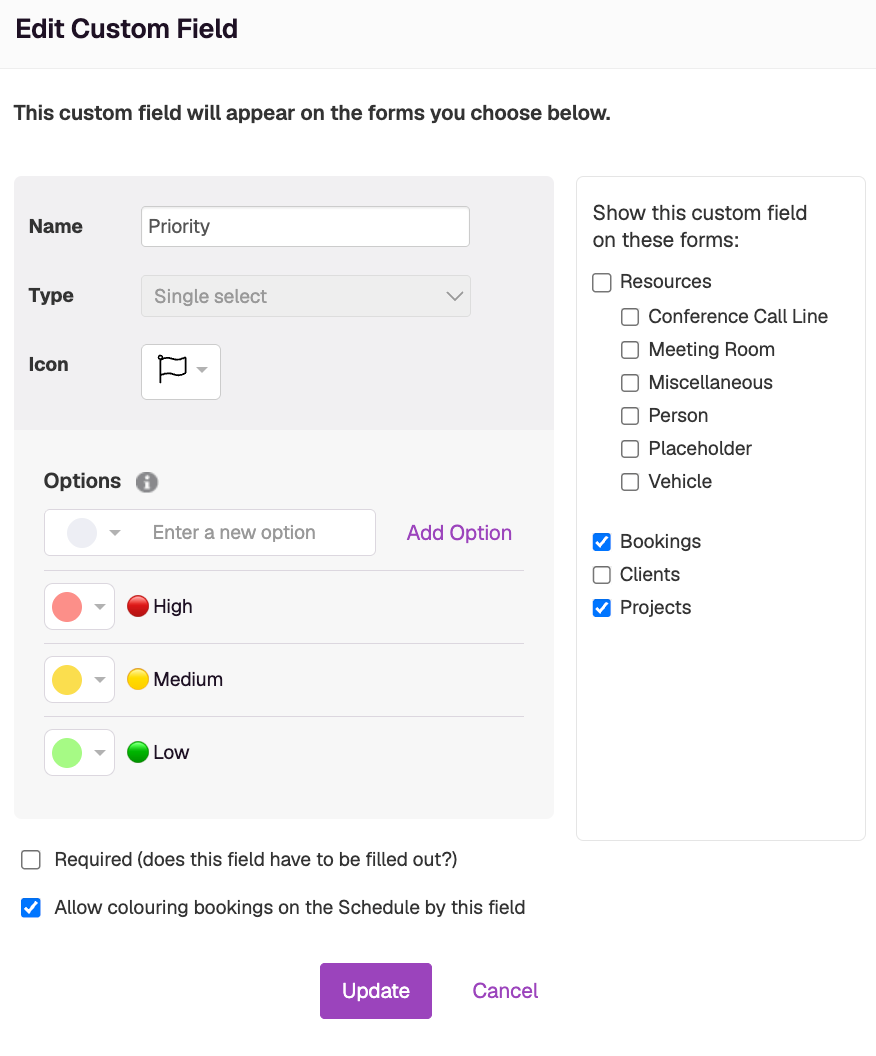
Where Colors Come From
Colors are set in different places depending on what you're coloring by:
Booker: the person's color, set on their profile. See Add People, Placeholders and Other Resources.
Project or client: set on the project or client. See Create Projects and Clients.
Activity type: set on the activity type. See Add Activity Types to Projects.
Custom field: set on each field value. See Create, Edit and Delete Custom Fields.
Choose What Appears on Bookings
On desktop, select Details. On mobile, open Schedule settings and find Customize Booking Details.
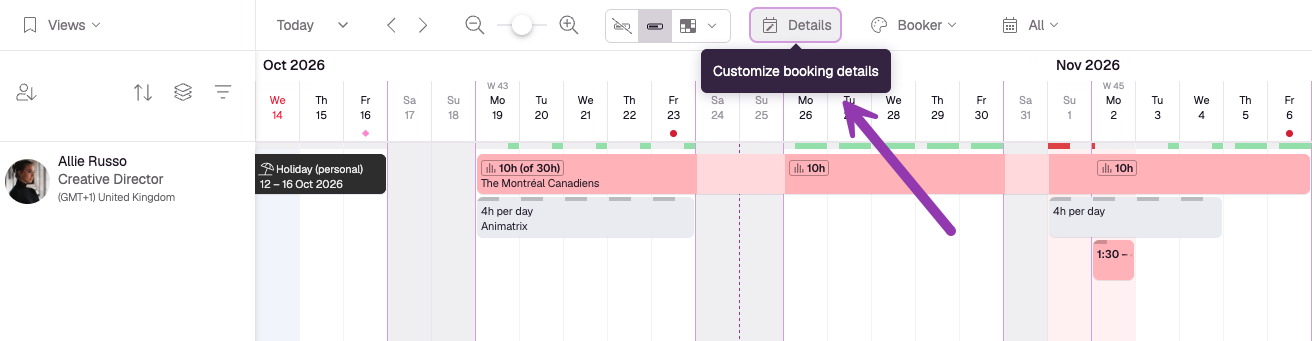
You can choose up to four fields to show on each booking and put them in any order. The available fields include:
project or client name
phase and task
activity type
the booking's details
project code
billable status
custom fields you're allowed to see
To leave a position empty, select None.
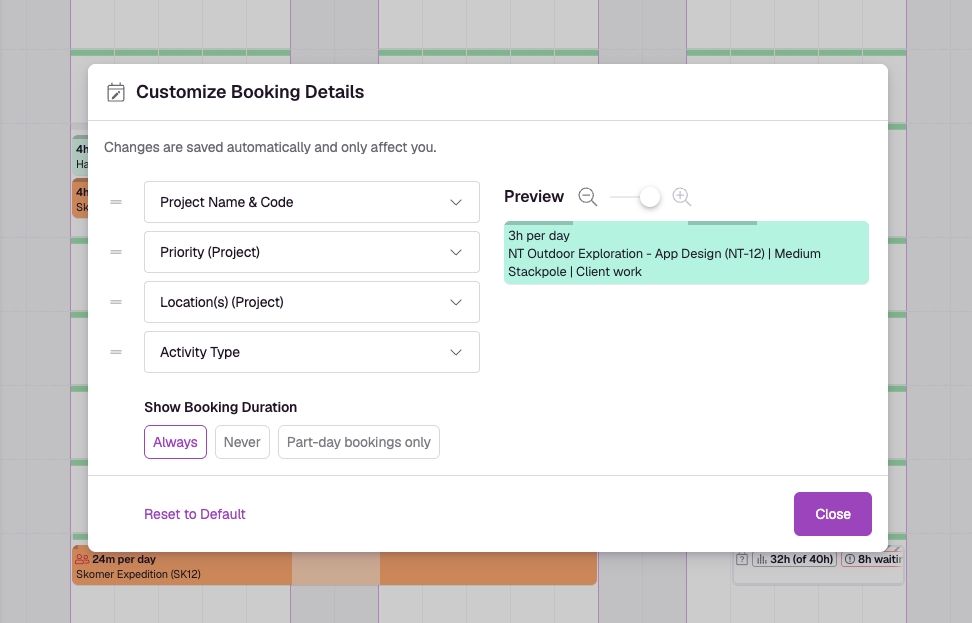
Show Booking Duration
Under Show Booking Duration, choose:
Always, to show the duration on every booking.
Never, to hide the duration on all bookings.
Part-day bookings only, to hide the duration on full-day bookings.
The preview shows how your bookings will look with your choices. Changes are saved automatically and only affect your own view of the Schedule, not anyone else's.
To go back to the original fields and duration setting, select Reset to Default.