
Create Total Hours Bookings
Please note: You will need sufficient permissions in order to create bookings. Please contact an administrator in your account if you need increased permissions.
Total Hours bookings are available on all plans.
Total Hours bookings let you book a fixed amount of work across a date range without choosing the number of hours for each day. You enter the total effort and the window, and Resource Guru places those hours into the available time inside it.
For example, you might book 30 hours for a person or a placeholder across the next few weeks. The booking always represents 30 hours in total, but the daily and weekly spread can vary depending on availability, other bookings, holidays, leave, and the flexibility option you choose.
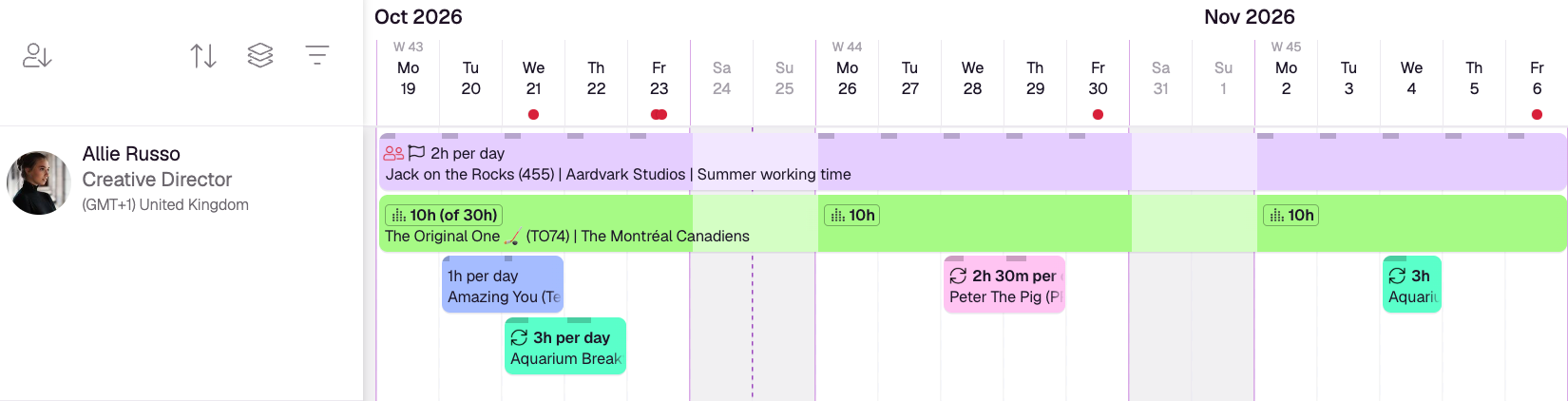
When to Use Total Hours
There are three types of booking you can create. Use Total Hours when you know the total effort required, but you want Resource Guru to distribute the work for you.
Good candidates for Total Hours include:
20 hours of design work sometime this week
80 hours of development across a month
12 hours of planning work before a deadline
200 hours on a project over the next three months
Total Hours bookings are best suited to flexible work rather than fixed meetings.
Booking type | Use it when | Example |
Hours Per Day | The same amount of time is needed on each day | 4 hours a day, Monday to Friday |
Total Hours | The total effort matters, but the daily spread does not | 40 hours, sometime in the next two weeks |
Specific Time | The work has to happen at a particular time of day | 9-10 am on Tuesday |
Use Hours Per Day when the person needs the same amount of time booked on each day.
Use Specific Time when the work must happen at particular times of day.
Guru tip
Total Hours bookings are especially useful for placeholders. If you know a project needs 200 hours of engineering time next quarter but you don't yet know which engineer will pick it up, book the effort against a placeholder. When you assign a real person later, Resource Guru recalculates the allocation around their actual availability.
Create a Total Hours Booking
Create the booking the same way you would any other—click on a day, or click and drag across a range of days—then select Total Hours in the Booking form.
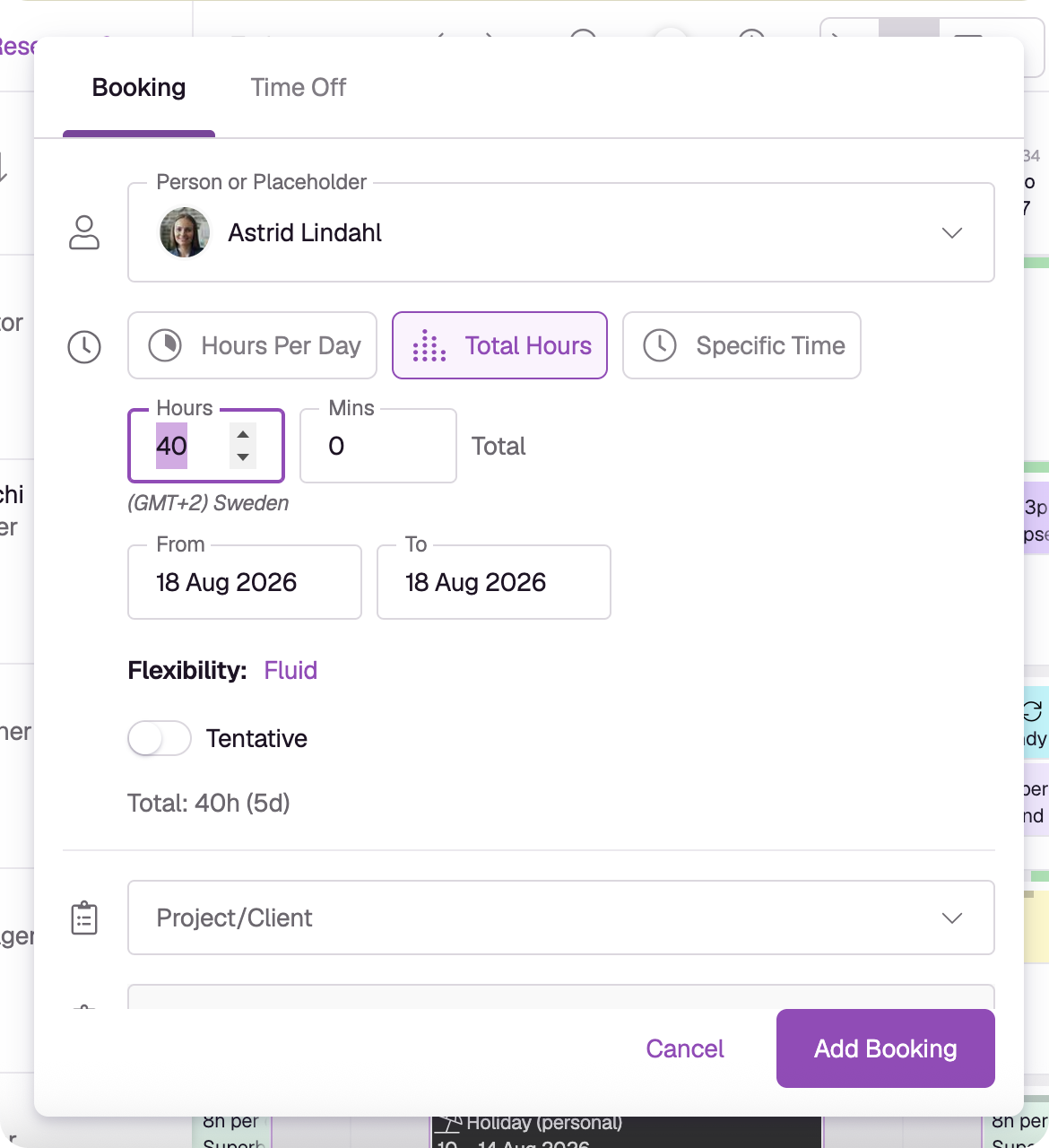
Person or Placeholder – Total Hours bookings cover one person or one placeholder at a time. They aren't available for multiple people, or for vehicles, rooms and other miscellaneous resources.
Hours / Mins – The total effort for the whole booking, not a daily figure.
From / To – The date range the work needs to happen within.
Flexibility – How the booked hours are allowed to move after the booking is created. See Flexibility Options below.
Tentative – Whether the booking is tentative or confirmed, just as with other booking types.
Project/Client, Activity Type, Billable, Details and the other booking fields all work exactly as they do for any other booking.
As you fill in the form, a running total appears beneath the Flexibility setting—for example, Total: 40h (5d)—so you can sanity-check the effort you've entered before saving. When you're happy, click Add Booking.
How Hours Are Allocated
Resource Guru allocates the total hours into available time inside the booking's date range.
The hours are first spread sensibly across the weeks in the range. If there isn't enough availability in one week, more of the work may be placed in another week, depending on the flexibility setting and the capacity available.
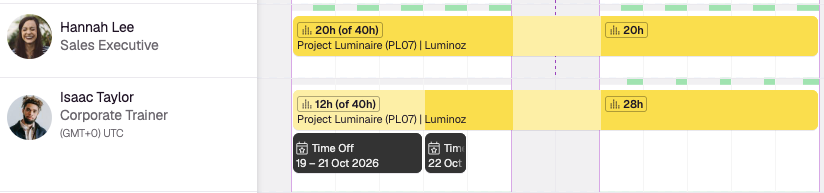
For example, if you create a 40 hour Total Hours booking across two weeks, Resource Guru may start by allocating 20 hours in Week 1 and 20 hours in Week 2. If Week 1 only has 12 hours available, the booking may allocate 12 hours in Week 1 and 28 hours in Week 2.
Flexibility Options
Allocations can change later if the schedule changes—when a new booking is added, or when holidays, time off or reduced availability alter someone's capacity. Only the hours inside Total Hours bookings move. Other booking types, such as Hours Per Day and Specific Time, stay exactly where you put them.
Flexibility controls how much a Total Hours booking is allowed to move after it has been created. Every Total Hours booking has one of three options.
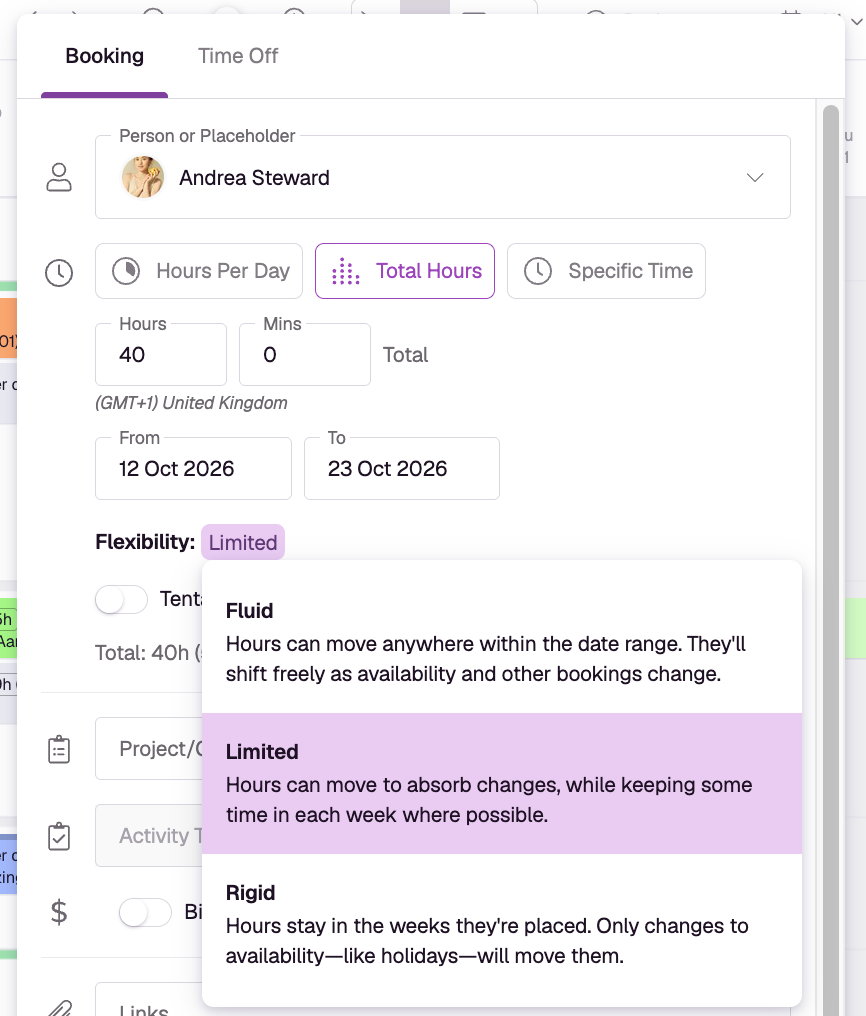
Fluid
Hours can move anywhere within the date range. They'll shift freely as availability and other bookings change.
Use Fluid when the work only has to be finished by the end date.
Limited
Hours can move to absorb changes, while keeping some time in each week where possible.
Use Limited when the work should progress steadily rather than cluster wherever there happens to be space.
Rigid
Hours stay in the weeks they're placed. Only changes to availability—like holidays—will move them.
Use Rigid when the weekly plan is a commitment you've made to a client. Other bookings won't push the hours into a different week, although availability changes such as holidays or reduced working time can still move them where necessary.
How Total Hours Bookings Appear on the Schedule
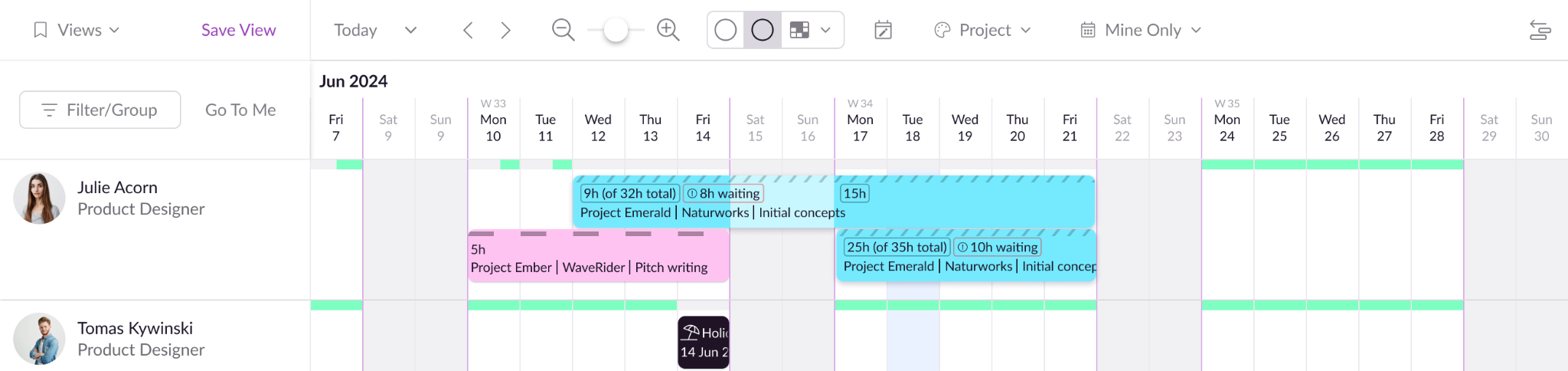
On the Schedule, a Total Hours booking spans its full date range.
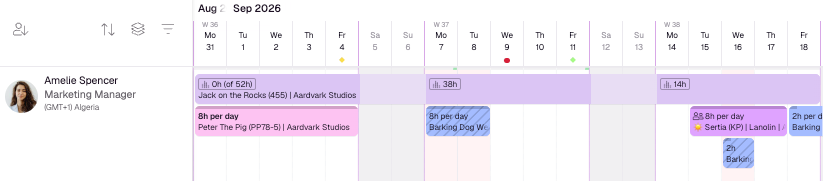
Each week shows a weekly allocation label—for example, 30h—so you can see how many hours are currently allocated in that week. The first visible label also shows the total requested effort, like 10h (of 40h).
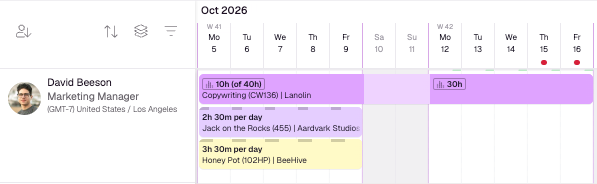
If a week has no allocated hours, the Schedule shows 0h for that week. This makes it clear that the booking covers the week, even though no hours are currently allocated there.
Waiting List Time
If Resource Guru can't fit all of the requested hours into available time, the remaining hours go onto the Waiting List. This happens automatically—you won't see a booking clash dialog with the usual options to add with overtime or extend availability.
Hours can't be allocated to weekends, other non-working days, or time off. If the date range doesn't contain enough working time to cover the total, the shortfall goes to the Waiting List.
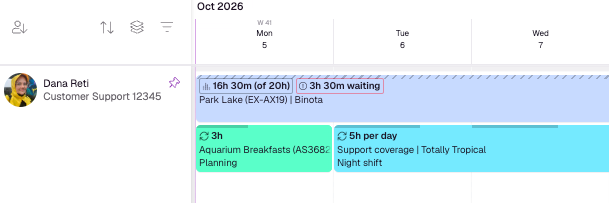
For Total Hours bookings, waiting list time is shown as an unallocated remainder rather than as specific waiting days. A 20 hour booking might have 16 hours and 30 mins allocated and 3 hours 30 mins waiting.
On the Schedule, partially waitlisted Total Hours bookings use the usual Waiting List styling, alongside a label showing the number of waiting hours. They also appear in the Actions Drawer and on your Dashboard with your other Waiting List bookings.
Waiting list time can change if availability changes, if you edit the booking, or if other bookings move.
Editing Total Hours Bookings
You can view and edit Total Hours bookings from the booking details, using the same flow as any other booking type.
Changing the total hours, date range, person or placeholder, or flexibility will cause Resource Guru to recalculate the allocation. Changing notes, project, or other non-scheduling details won't.
When a booking overlaps past and future dates, Resource Guru will ask how to apply the change:
Apply to future dates only keeps allocated hours up to and including today unchanged, then recalculates the future allocation.
Apply to the entire date range recalculates the whole booking, including past dates.
Splitting Total Hours Bookings
You can split a Total Hours booking using the usual split booking action.
When a Total Hours booking is split, Resource Guru keeps the current daily allocations on each side of the split rather than rebalancing them. Each resulting booking becomes its own Total Hours booking, and its total is based on the hours already allocated on that side.
If the original booking has waiting list time, those waiting hours move to the later of the two bookings.
Convert to Hours Per Day
If a Total Hours booking has settled into a plan you're happy with, you can lock it in place. Click the three dots in the top right corner of the booking to display the Options menu, then choose Convert to Hours Per Day.
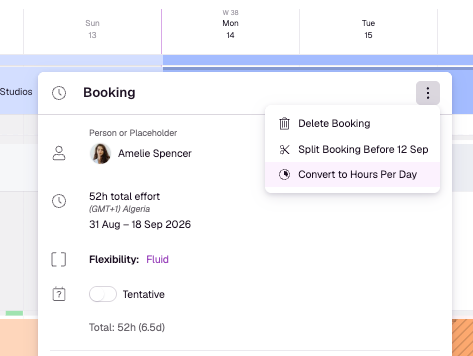
Conversion takes a snapshot of the booking's current daily allocations and creates fixed Hours Per Day bookings that match them. The original Total Hours booking is replaced.
After conversion:
the booking no longer redistributes automatically
the flexibility setting is removed
the action can't be undone
If the booking has hours on the Waiting List, those hours won't be converted and will be removed. And if a Total Hours booking has no allocated hours at all, it can't be converted.
Total Hours Bookings in Reports
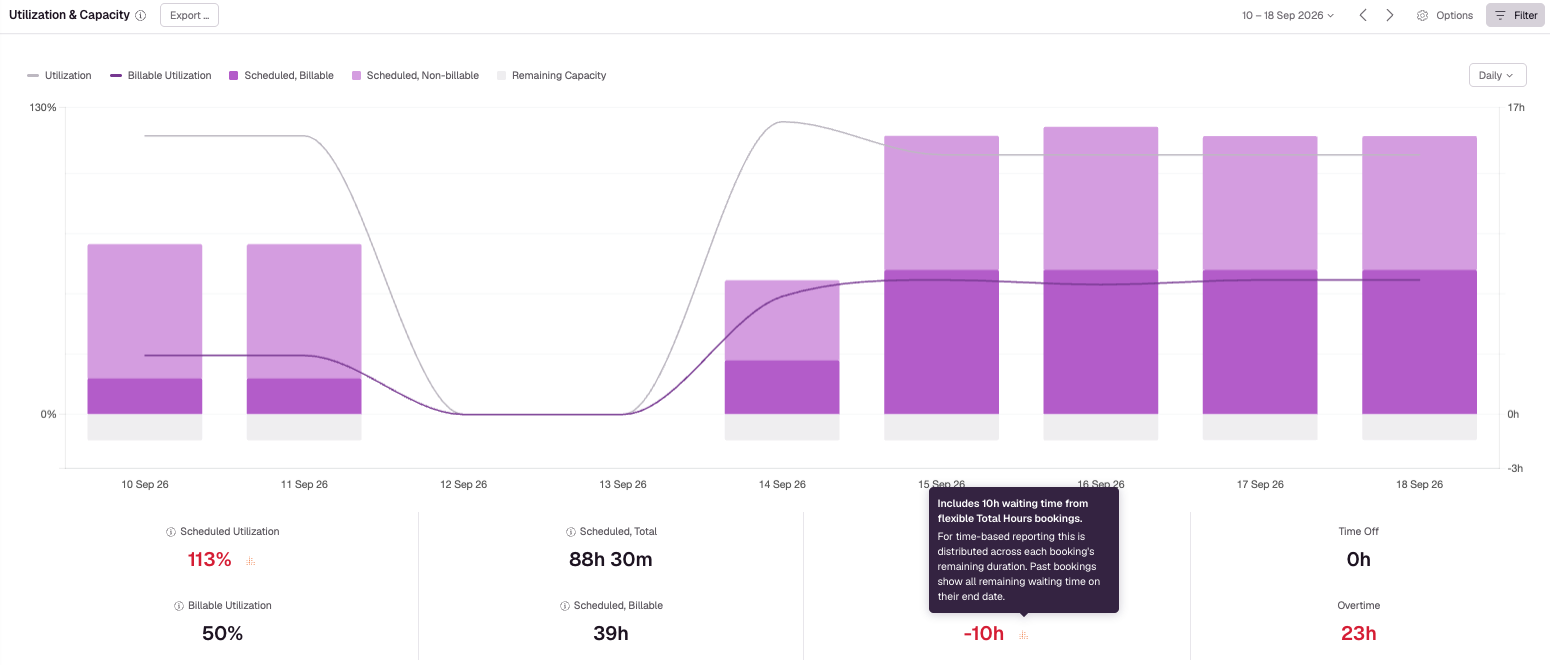
Total Hours bookings appear in Reports in two ways:
Allocated hours count as scheduled time, exactly like any other booking.
Waiting List hours don't have assigned dates yet, so they're spread evenly across the days in the booking. Ten hours on the Waiting List on a ten-day booking count as one hour a day. Only future days are included, so the figure shows you where capacity is heading rather than what has already happened.
Things to Know
Total Hours bookings cover one person or one placeholder at a time. They aren't available for multiple people, vehicles, rooms, or other miscellaneous resources.
Total Hours bookings can't be repeated.
The total requested hours never change unless you edit them.
Waiting list time means Resource Guru couldn't fit all of the requested hours into the available capacity.
Converting to Hours Per Day can't be reversed, and drops any waiting list hours.