
Connecting ClickUp with Resource Guru
You can integrate ClickUp with Resource Guru to simplify your scheduling workflow. With this connection, you can create bookings directly from ClickUp tasks. Here’s how to get started.
Setting up the ClickUp Integration
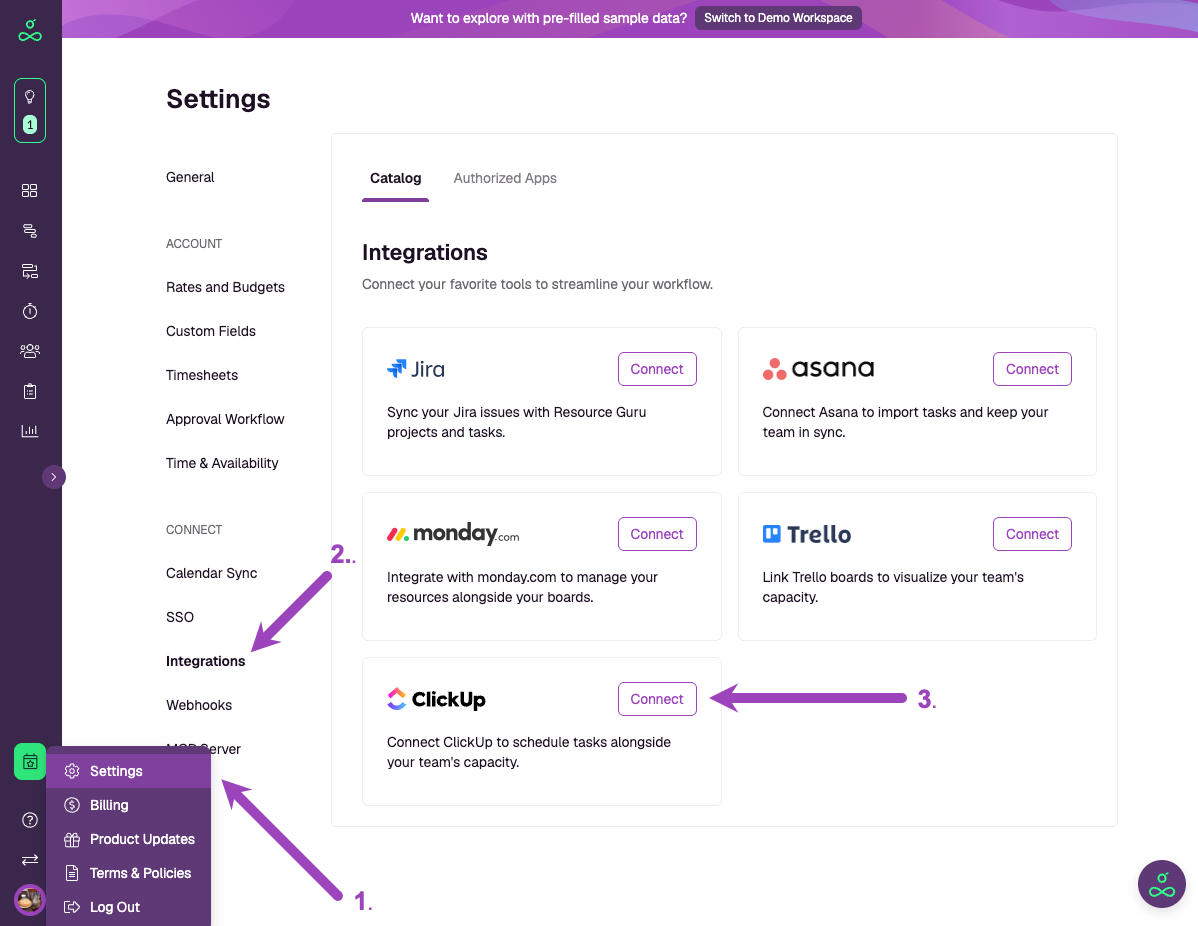
Go to Settings from the sidebar.
Click Integrations in the left hand menu.
In the integrations catalog, find ClickUp and click Connect.
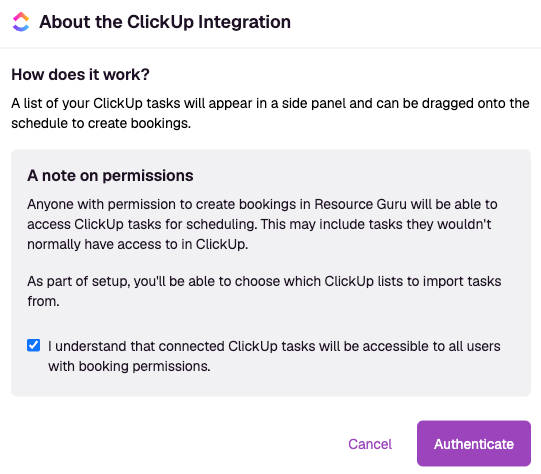
A pop-up will explain what to note:
How it works: ClickUp tasks will appear in a panel beside the Schedule, ready to drag and drop.
Permissions: Any user with permission to create bookings in Resource Guru will be able to view and schedule imported ClickUp tasks.
Check the box to confirm you understand how permissions work, then click Authenticate.
Authenticate with ClickUp
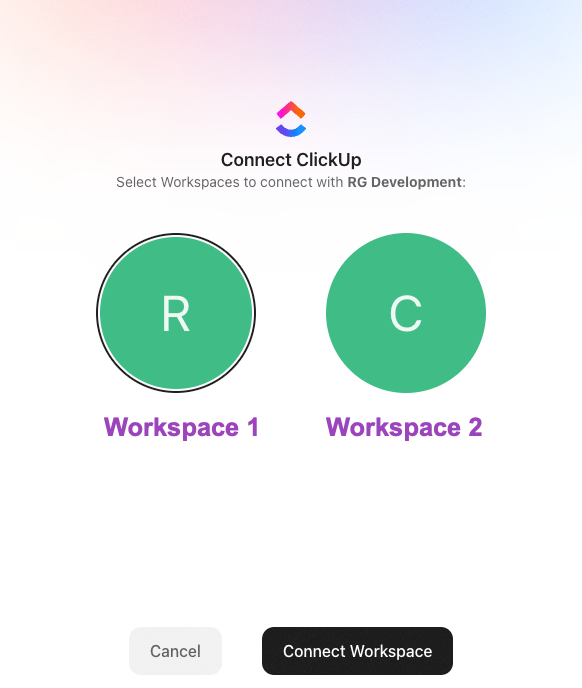
Enter your ClickUp Workspace details if prompted.
Click Connect Workspace.
You'll be redirected to ClickUp to authorize access for the integration. If you have multiple workspaces you will have to choose which one to connect.
Configure ClickUp Integration settings
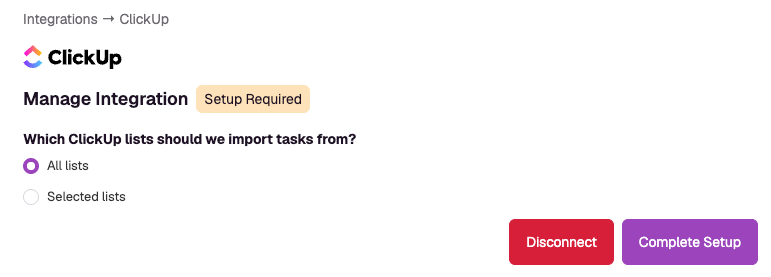
Once connected, you'll be able to choose how ClickUp lists and tasks are imported. Choose between:
Import all lists
Select lists to import from the dropdown menu
Scheduling ClickUp tasks
After setup, ClickUp tasks will appear in a dedicated panel beside the Schedule.
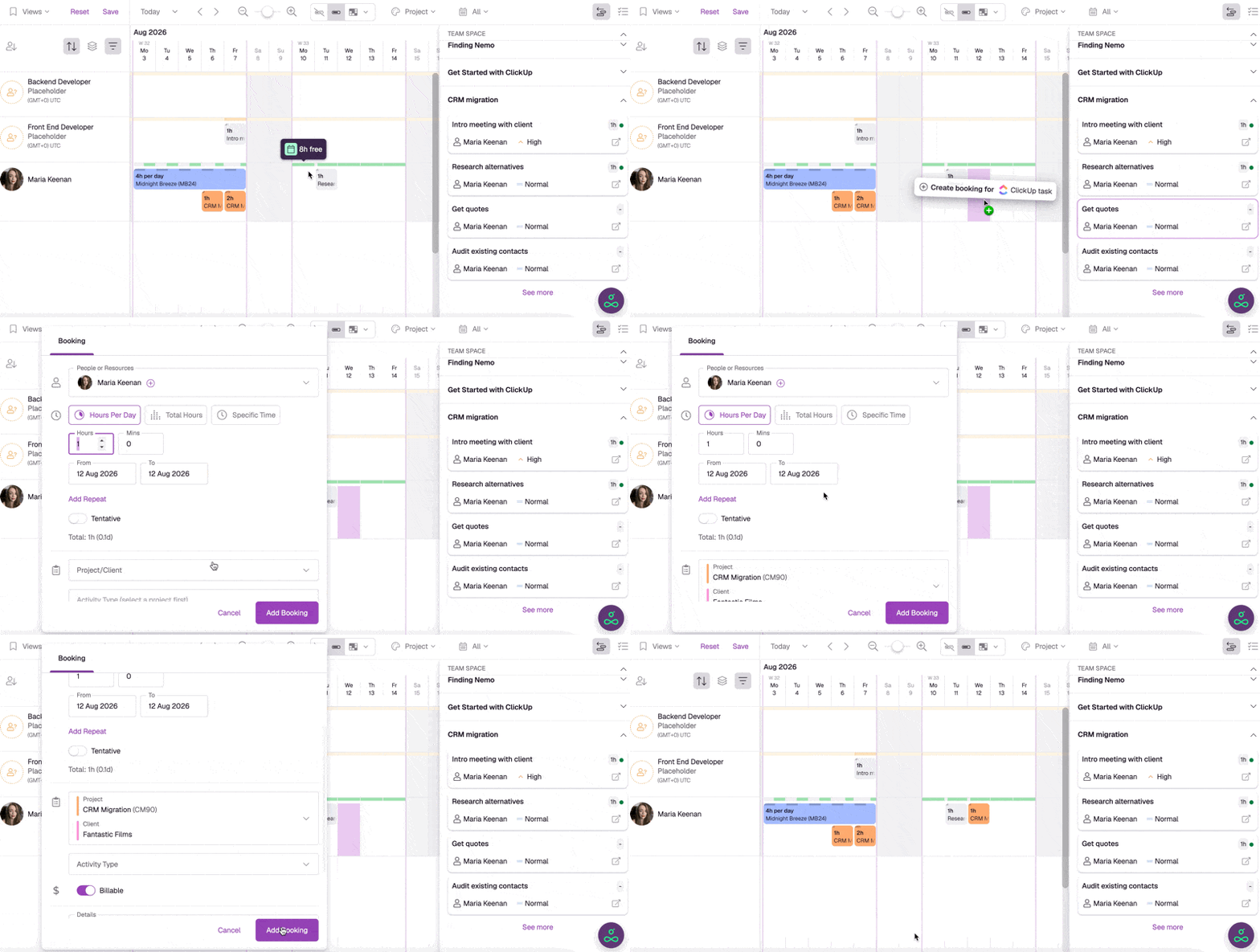
What you can do:
Drag and drop tasks onto your team's schedule to create bookings.
Move, extend, shorten, and split bookings, just like any other booking in Resource Guru.
Open scheduled ClickUp tasks to view booking details, project information, and activity history.
Create multiple bookings against the same ClickUp task if needed.
New ClickUp tasks are automatically synced to Resource Guru, ensuring your scheduling workflow stays up to date.
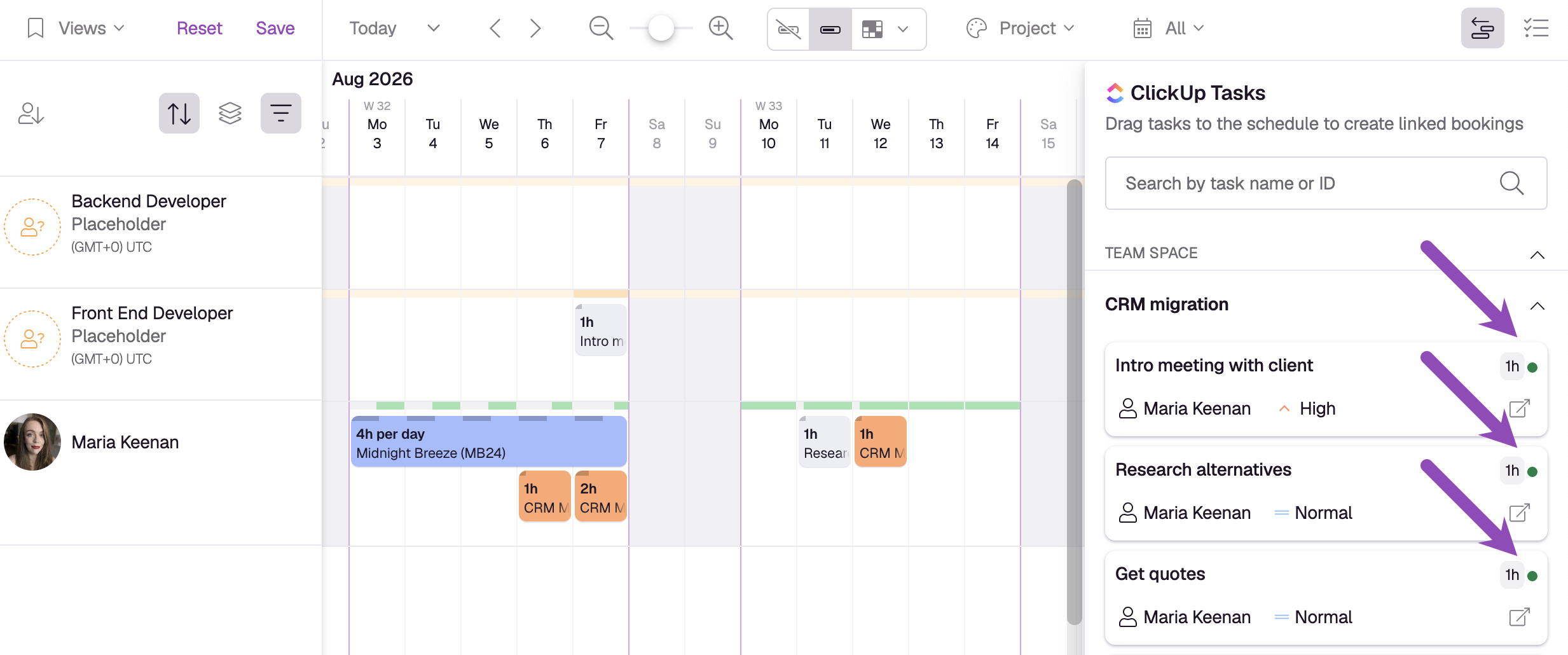
See how much time has been scheduled against ClickUp tasks
Once the integration is set up, you can easily track which tasks from ClickUp have associated bookings in Resource Guru.
A task with time booked against it will show a green indicator, alongside how much time is booked for that task — all on the respective card in the Integrations panel.
Notes
Tasks sync from ClickUp to Resource Guru automatically.
Any user with sufficient permissions is able to create bookings from ClickUp tasks.
Changes made to bookings in Resource Guru do not update the original task in ClickUp.
Interested in exploring other integrations?