
Connecting Asana with Resource Guru
You can integrate Asana with Resource Guru to simplify your scheduling workflow by creating bookings directly from Asana tasks into your Schedule.
Setting up the Asana Integration
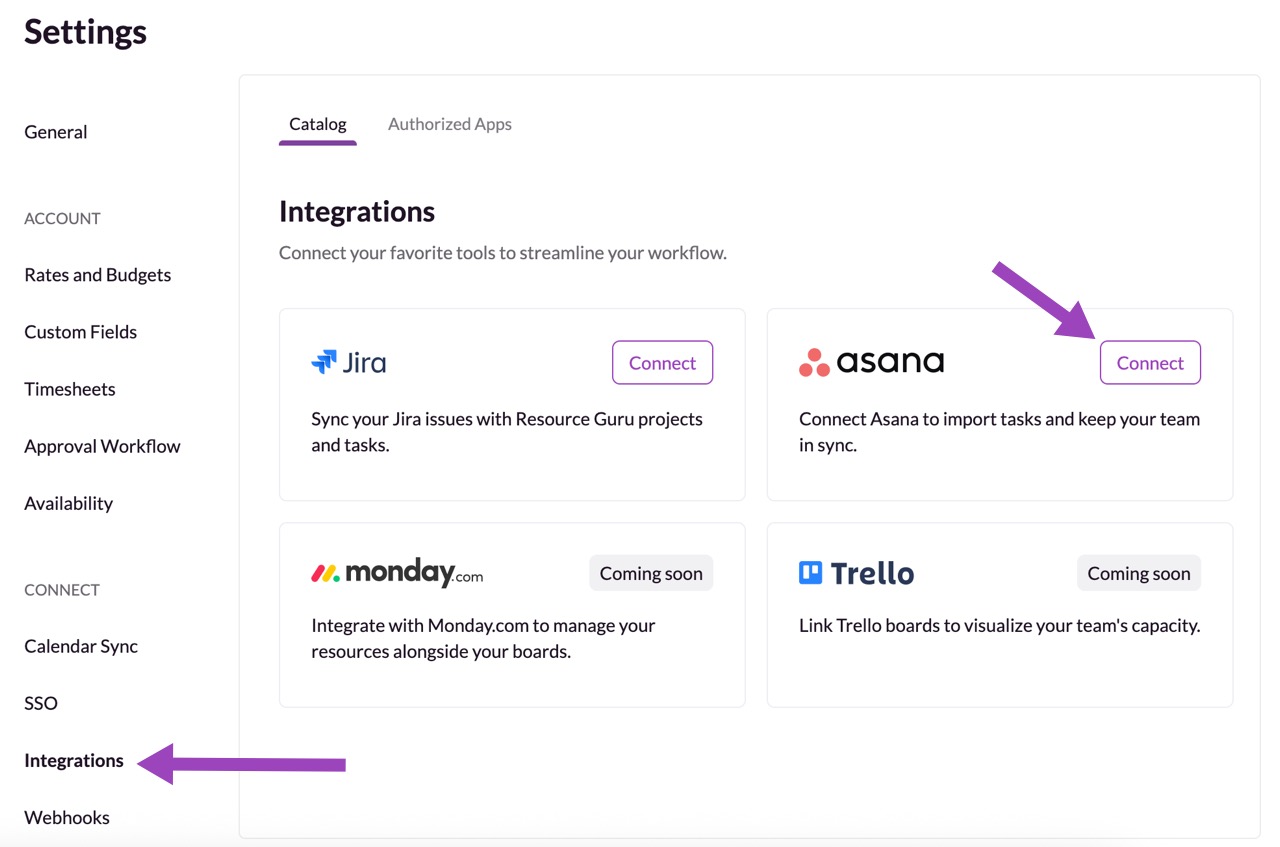
Go to Settings from the sidebar.
Under the Connect section, click Integrations.
In the Integrations Catalog, find Asana and click Set Up.
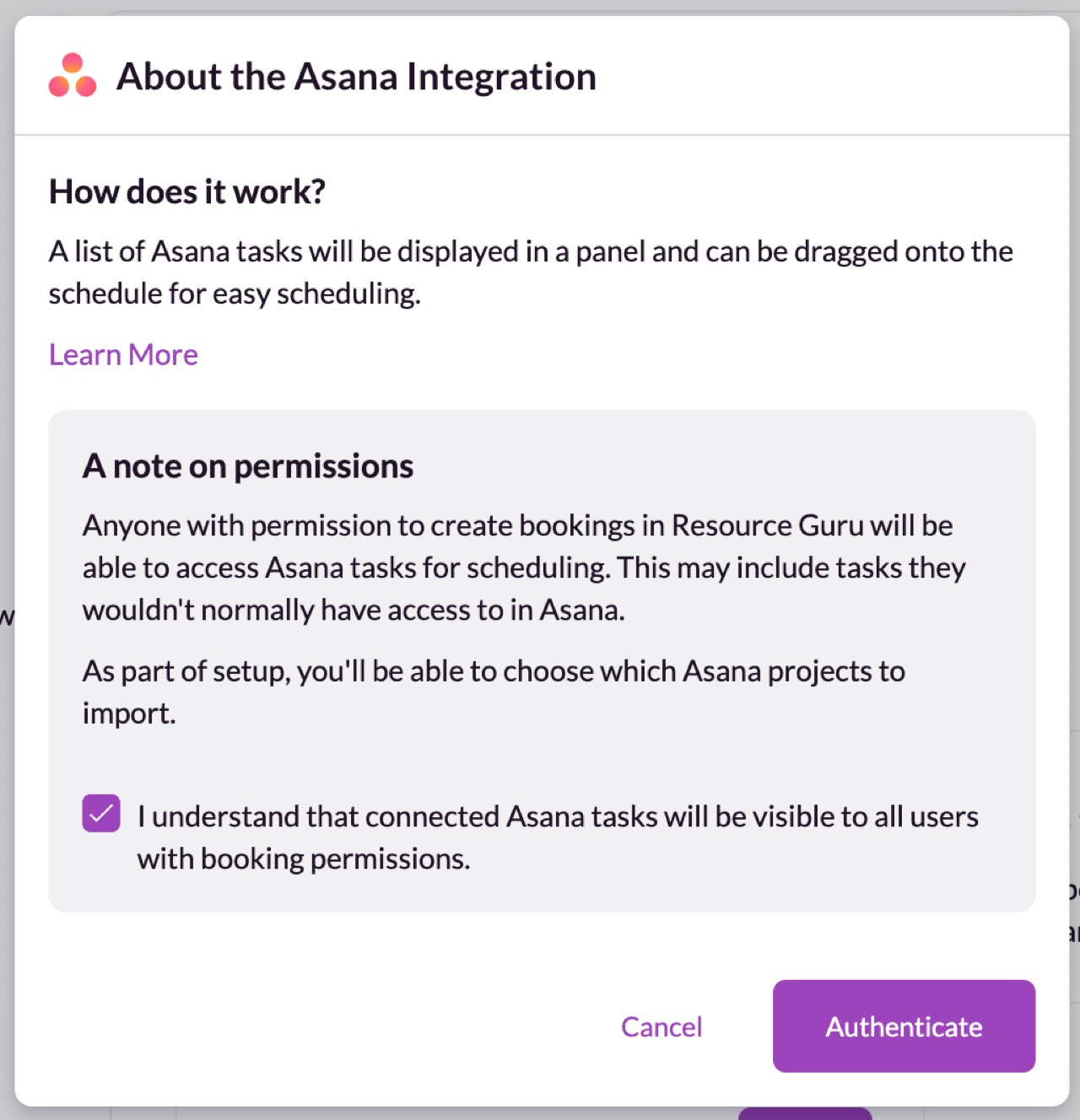
A pop-up will explain what to note:
How it works: Asana tasks will appear in a panel beside the Schedule, ready to drag and drop.
Permissions: Any user with permission to create bookings in Resource Guru will be able to view and schedule imported Asana tasks.
Check the box to confirm you understand how permissions work, then click Connect Asana.
Authenticate with Asana
If you have more than one Asana account you're looking to connect, tick the box and follow the instructions.
Enter your Asana Site URL
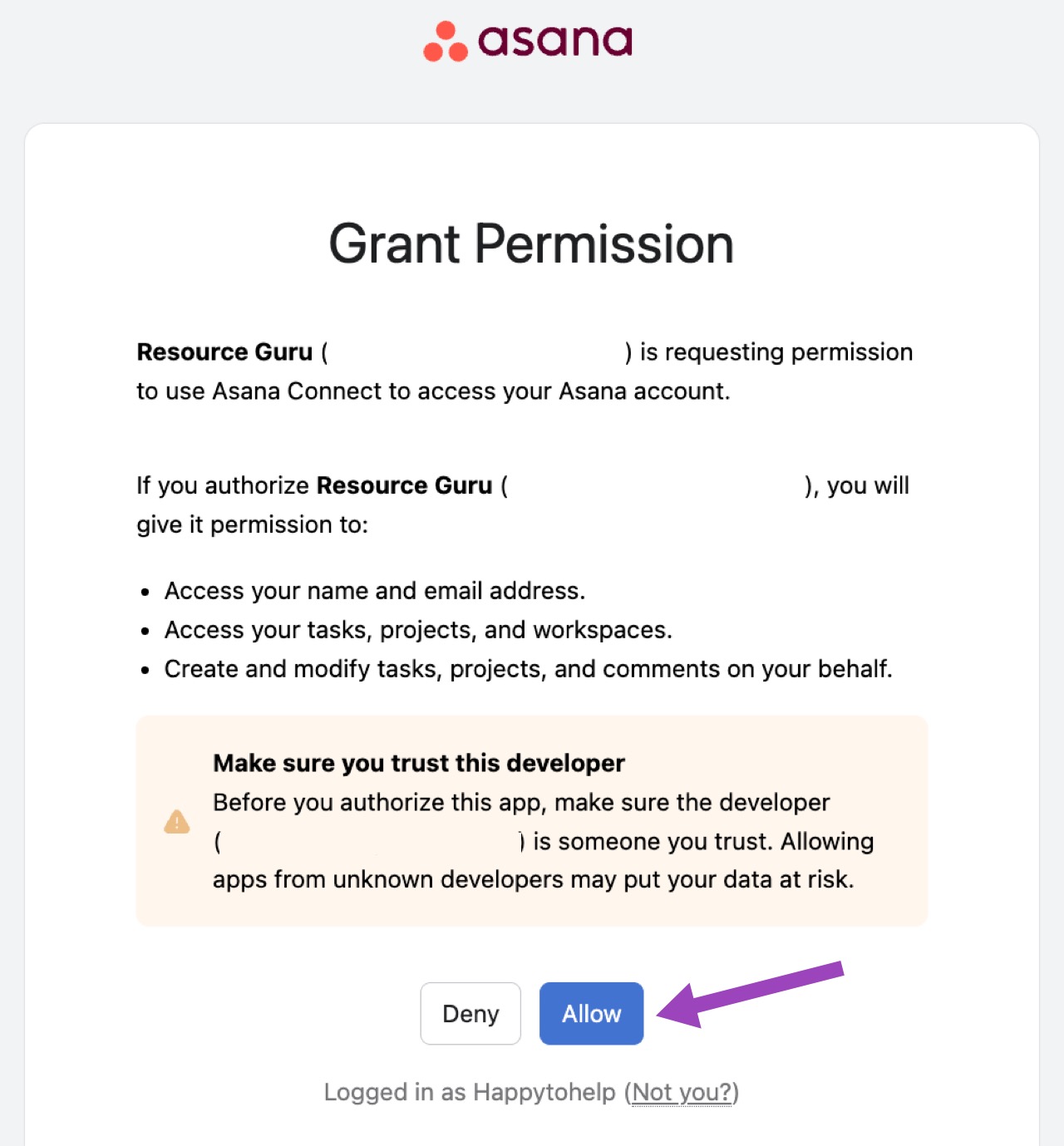
Click Allow.
You’ll be redirected to authorise access for the integration.
Configure Asana Integration Settings
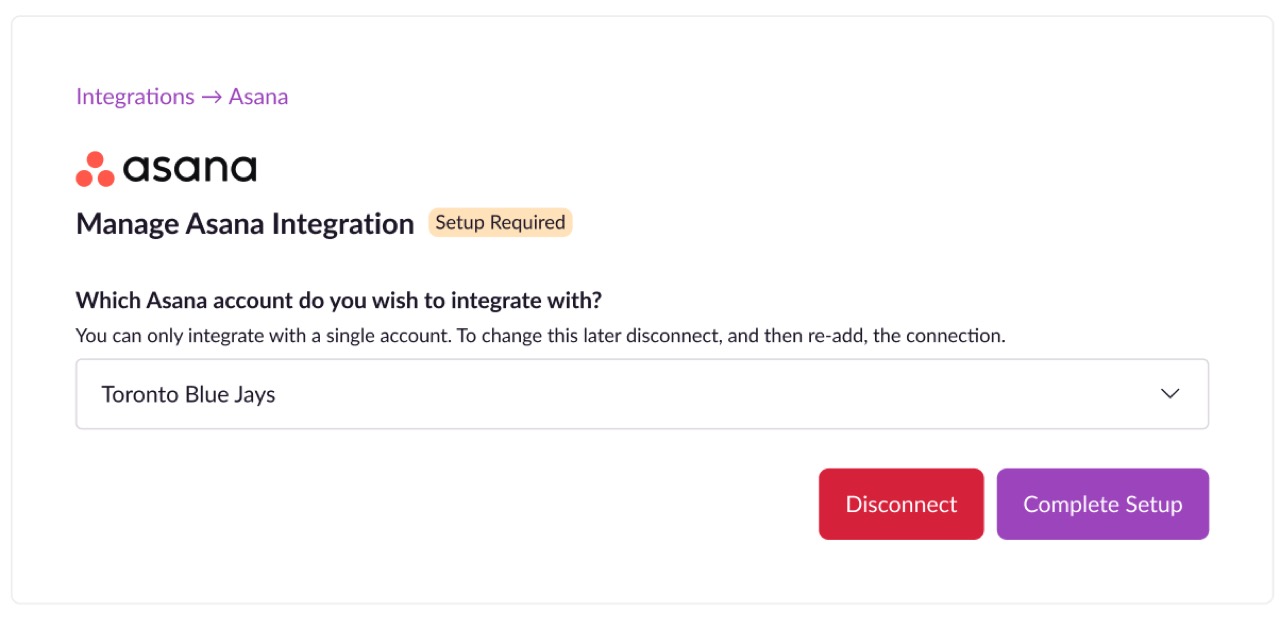
If you own more than one Asana account, please specify which one you want to connect.
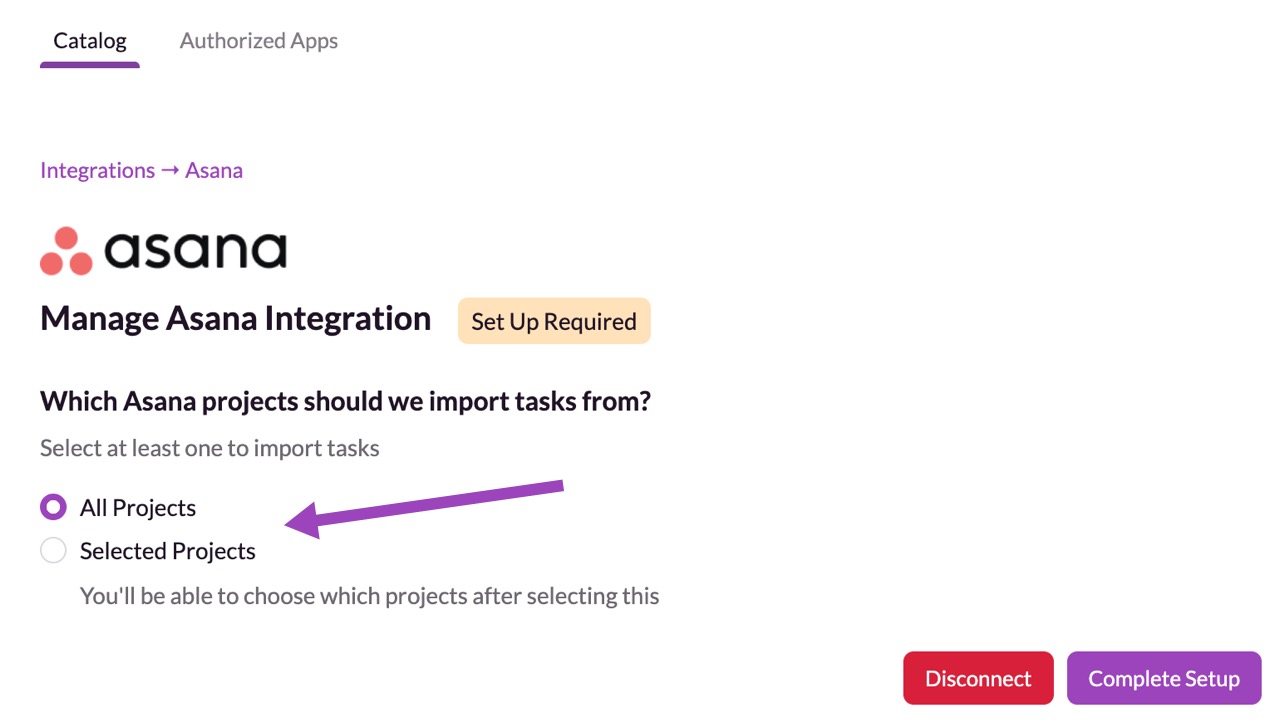
Once connected, you’ll be able to choose how Asana tasks are imported. Choose between:
Import all Projects
Select Projects to Import from the dropdown menu.
Scheduling Asana tasks
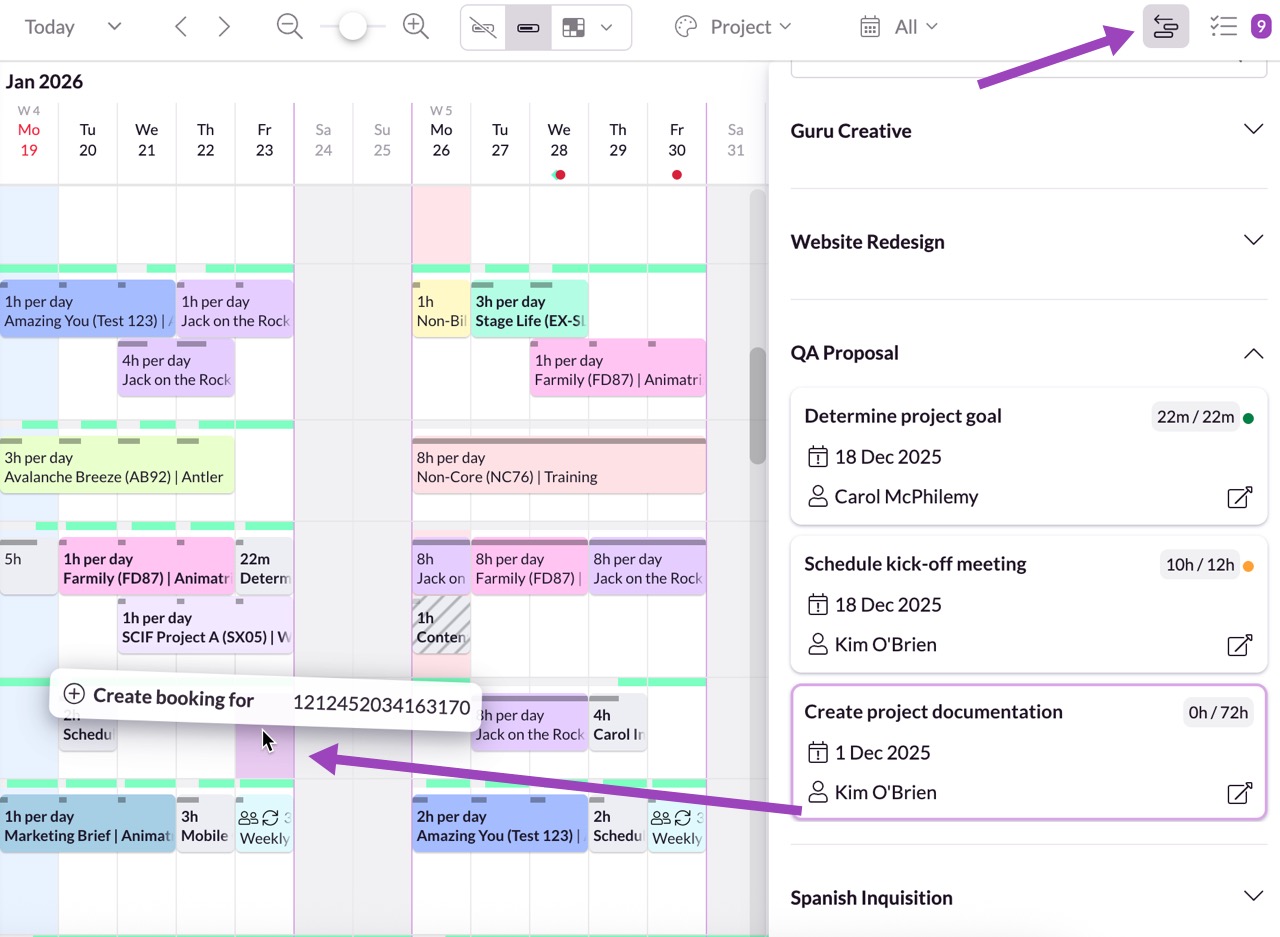
After setup, Asana tasks will appear in a dedicated panel next to the action drawer in the Schedule.
What you can do:
Drag and drop tasks onto your team’s schedule, they’re converted into bookings. These bookings can be moved around, extended and contracted and split, like any other booking.
You can open any scheduled Asana tasks to view booking details, project info, and activity history.
Note on Asana subtasks
At the moment, Asana subtasks aren’t included in the initial import or sync. This is due to a limitation in Asana’s API, where subtasks belong to a parent task and can’t be retrieved in bulk. You can still import and sync all top-level tasks as expected.
See How Much Time Has Been Scheduled Against Asana Tasks
Once your Resource Guru–Asana integration is connected, you can easily track how much of each task’s estimated time has been scheduled.
This view helps you instantly spot whether a task is under- or over-scheduled, giving your team real-time visibility into workload and planning accuracy.
How It Works
Each Asana task that’s synced with Resource Guru includes:
The original time estimate from Asana
The total time scheduled in Resource Guru (across all bookings)
For example:
8h / 8h – means the scheduled time exactly matches the Asana estimate
40h / 16h – means the task is over-scheduled
Traffic Light Status
To make it even easier to understand at a glance, we uses a simple traffic light indicator beside each task:
🟢 On track – scheduled time matches the Asana estimate / there's no time estimate on this project
🟡 Still in range – hasn't been scheduled yet and requires action
🔴 Over-scheduled – scheduled time significantly exceeds the estimate
This updates in real time as bookings are added or adjusted in Resource Guru, so you’ll always see the current status of each Asana task without having to manually recalculate or cross-check.
Interested in exploring other integrations?