
Connecting monday.com with Resource Guru
You can integrate monday.com with Resource Guru to simplify your scheduling workflow. Once connected, you can create bookings based on monday.com tasks, directly in your Schedule.
Setting up the monday.com Integration
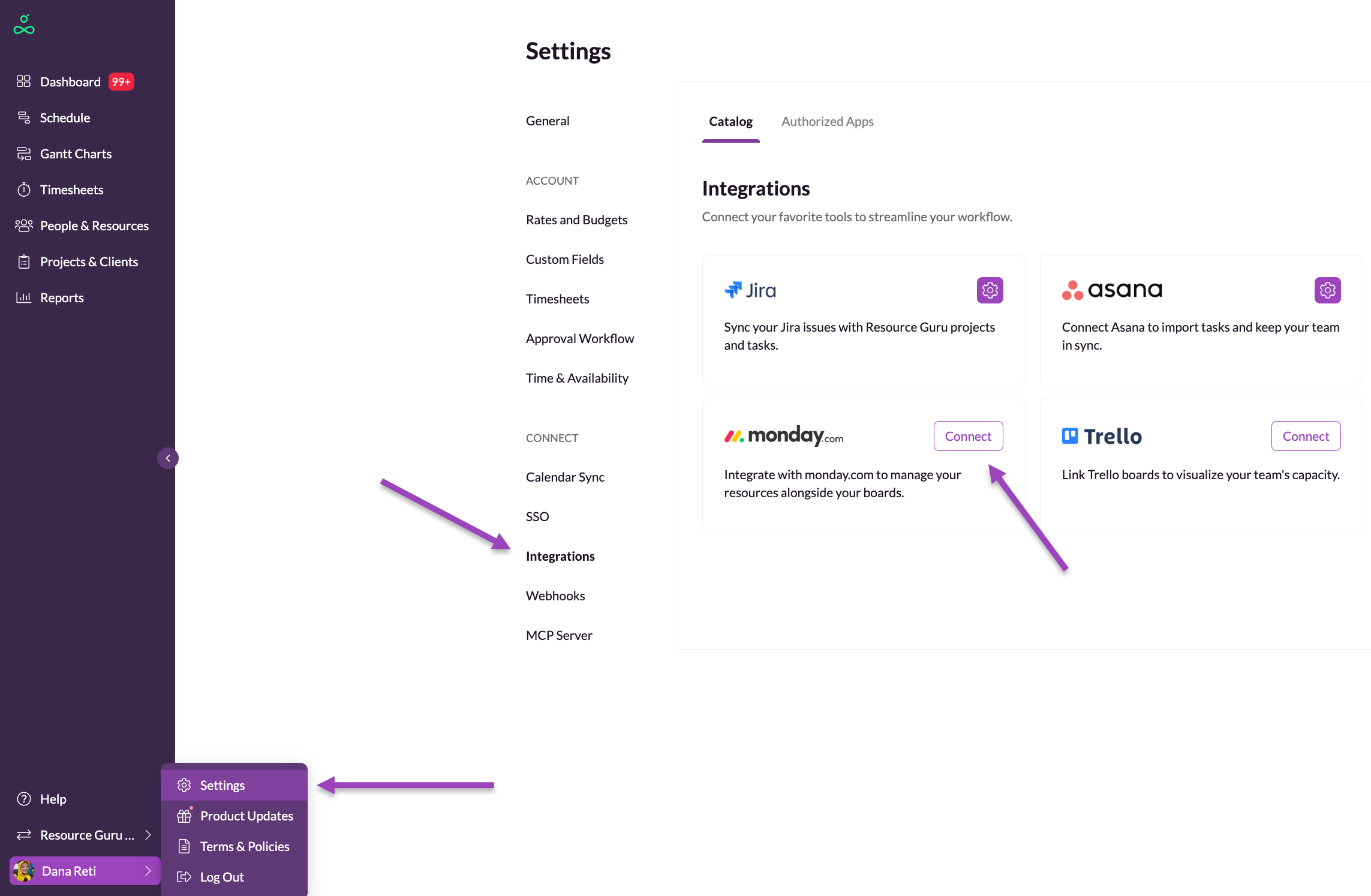
Go to Settings from the sidebar.
Under the Connect section, click Integrations.
In the Integrations catalog, find monday.com and click Connect.
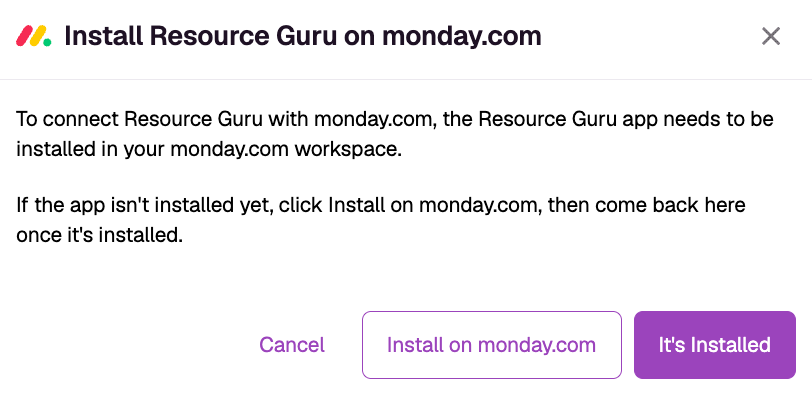
A pop-up will ask you to confirm whether the Resource Guru app was installed in your monday.com workspace:
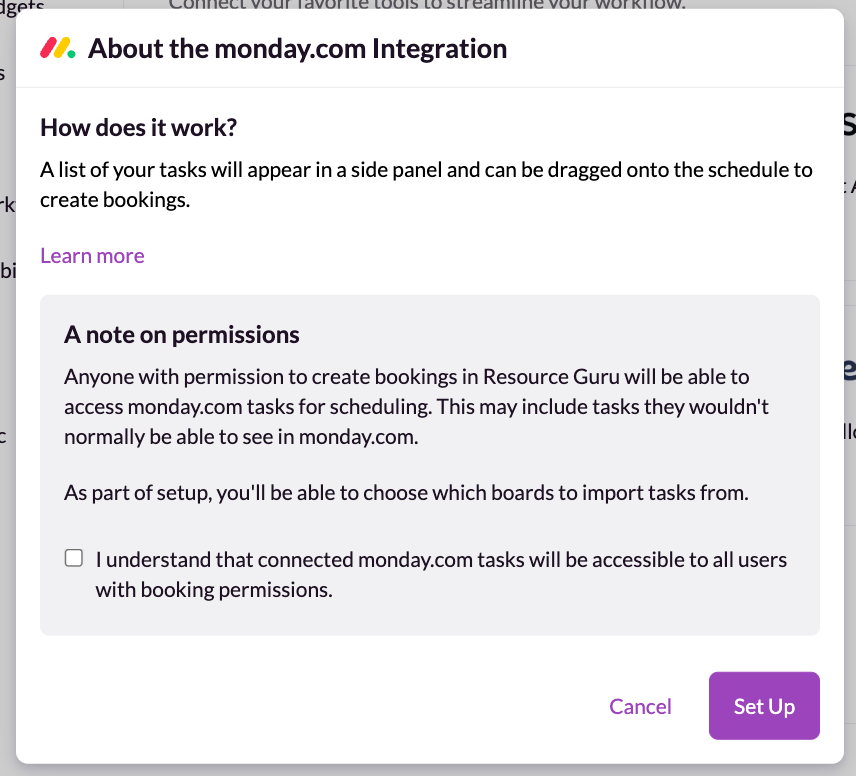
A pop-up will open to explain:
How it works: monday.com tasks will appear in a panel beside the Schedule, ready to drag and drop to quickly create bookings.
Permissions: Any user with permission to create bookings in Resource Guru will be able to view and schedule imported monday.com tasks.
Check the box to confirm you understand how permissions work, then click Set Up.
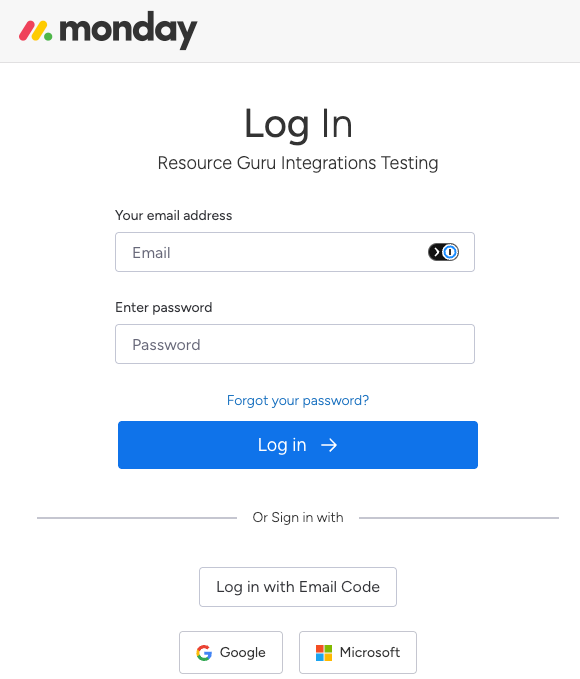
Authenticate with monday.com
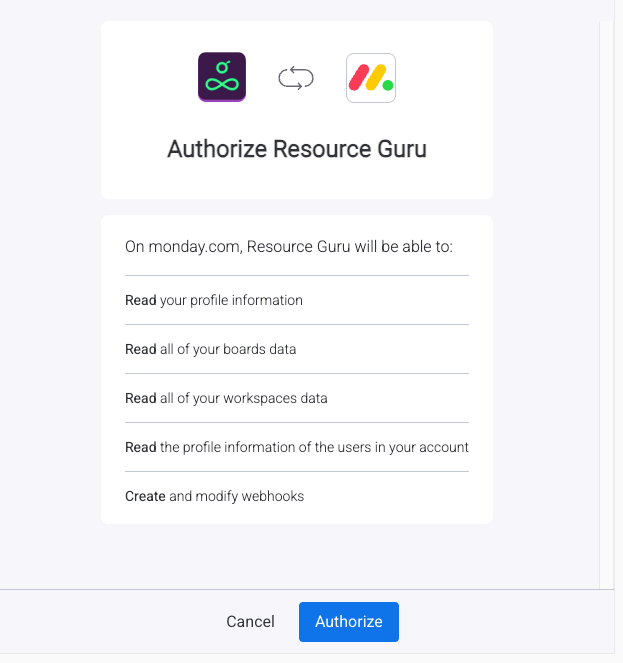
A pop-up will appear and ask you to log in to your monday.com account
Review the information shown in the next pop-up.
Click Authorize.
Configure monday.com Integration Settings
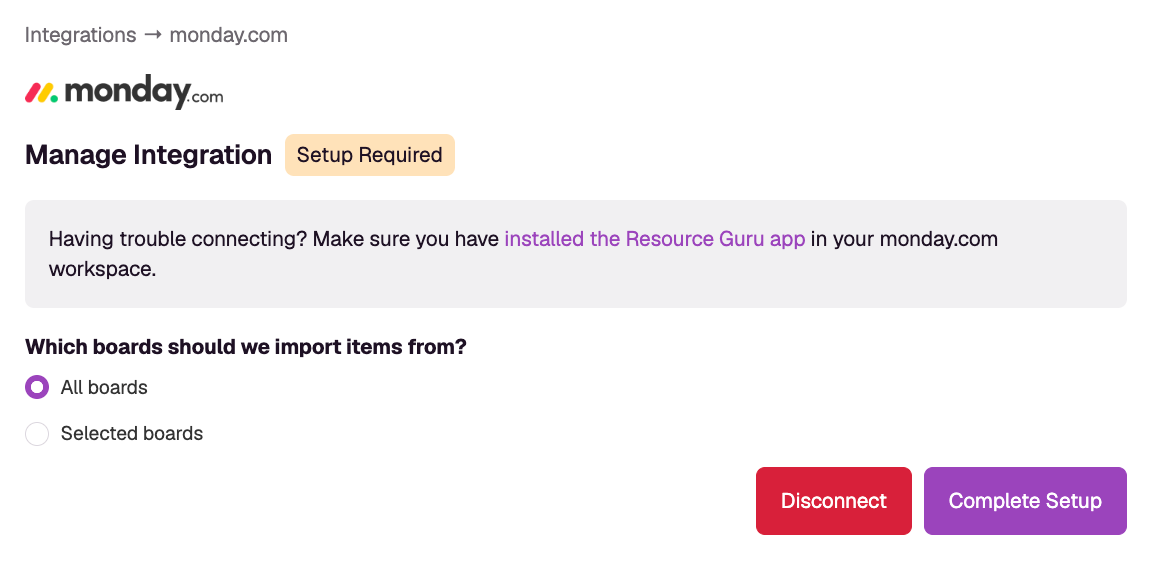
Once connected, you’ll be able to choose how monday.com tasks are imported. Choose between:
Import all boards
Import selected boards: you can choose which ones you’d like to import from the dropdown menu.
Click on Complete Setup.
Scheduling monday.com Tasks
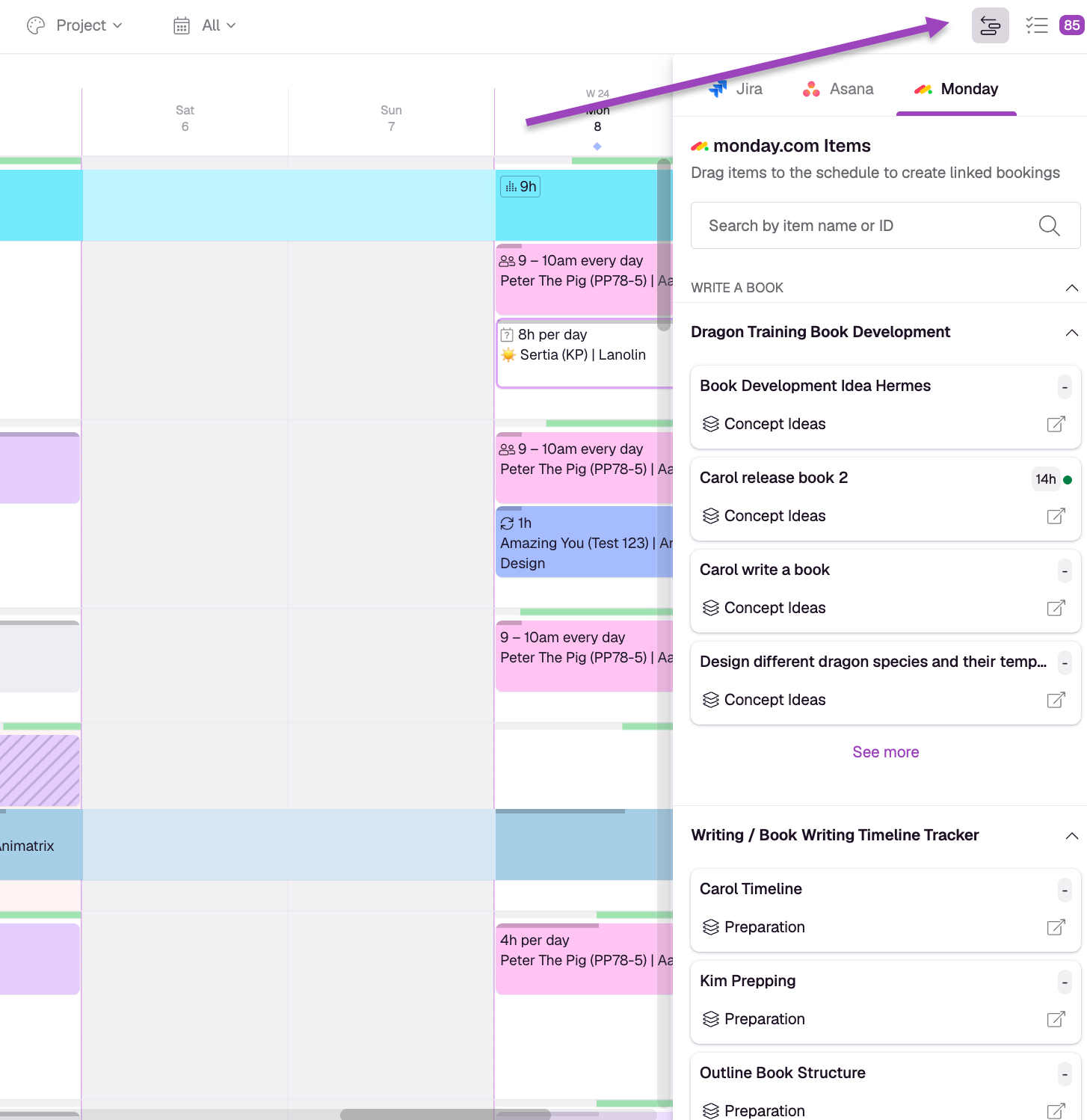
After setup, monday.com boards and tasks will appear in a dedicated panel next to the action drawer in the Schedule.
What you can do:
Drag and drop tasks onto your team’s schedule to create associated bookings. These bookings can be moved around, extended and contracted and split, like any other booking.
You can open any scheduled monday.com tasks to view booking details, project info, and activity history.
See How Much Time Has Been Scheduled Against monday.com Tasks
Once the integration is set up, you can easily track which tasks from monday.com have associated bookings in Resource Guru.
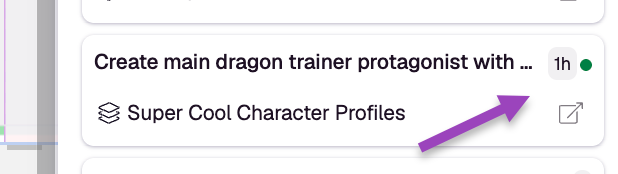
A task with time booked against it will show a green indicator, alongside how much time is booked for that task — all on the respective card in the Integrations panel.
Interested in exploring other integrations?