
Use Table View in People & Resources
Please note: What you can see and edit in People & Resources depends on your permissions. Please contact an administrator for your account if you need increased permissions.
Using the Table View in People & Resources helps you find, compare, and update the people and resources in your account in one place. The classic grid view is still available, but this option makes it easier to scan and edit information. From the table view, you can choose which columns to show, sort those, filter the list, and edit details directly.
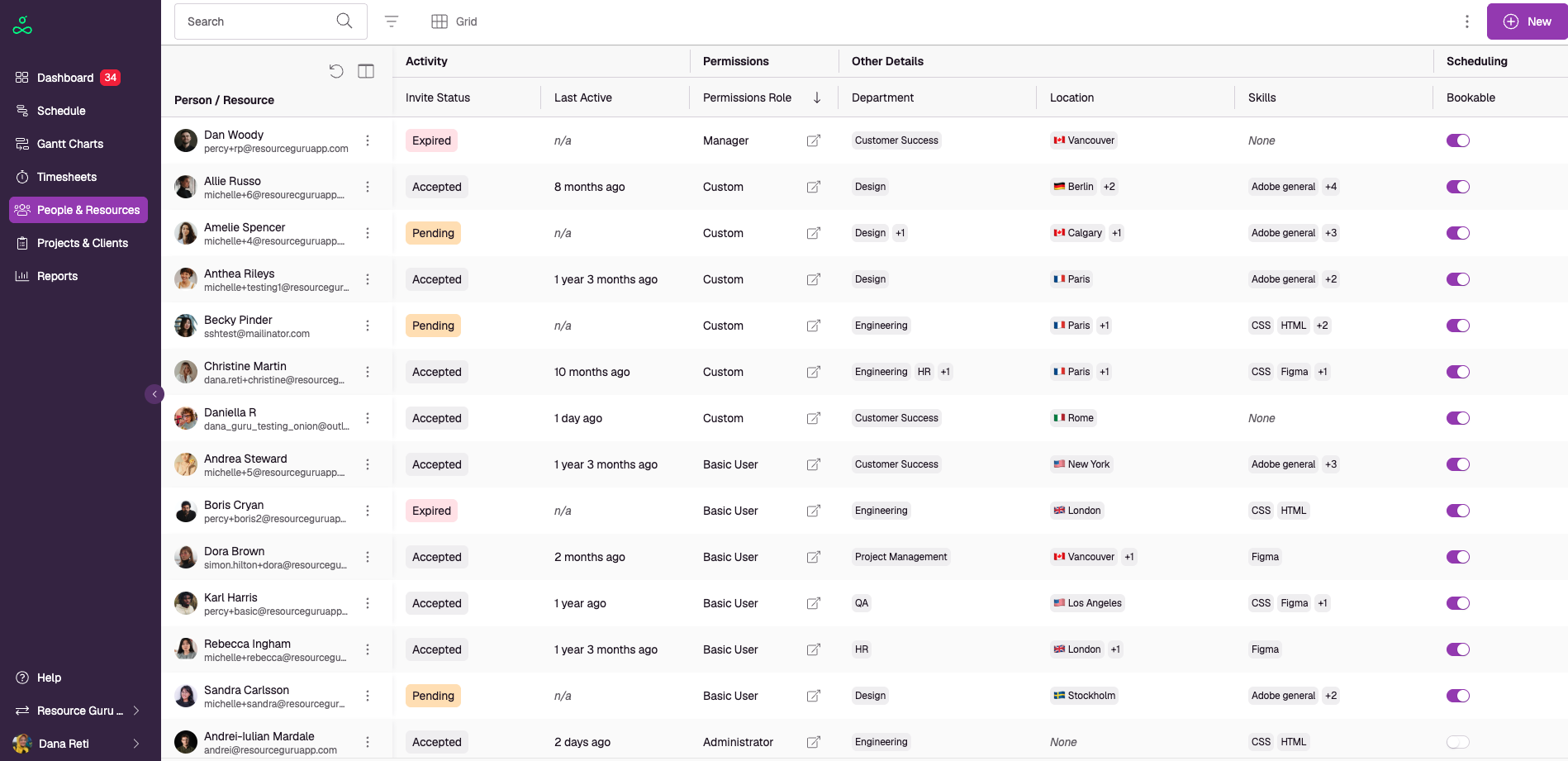
Switch Between Grid and Table View
In the People & Resources section, select Table to view your people and resources spread out over columns and rows. Select Grid to return to the card view.
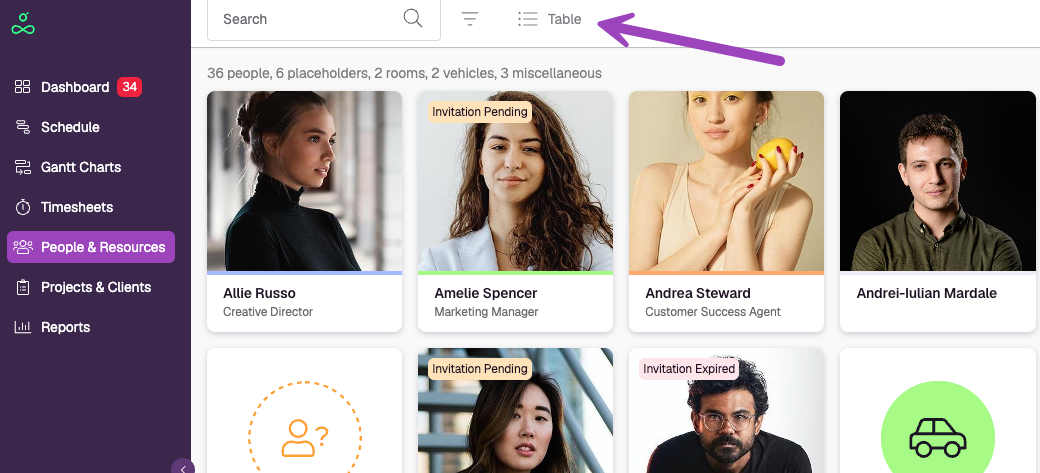
Your choice is saved locally, so People & Resources will open with the same view type active the next time you access that section.
Please note: Table View is only available on desktop. On mobile, the People & Resources section will always open in Grid View.
Using the table view, you can:
Sort the list by clicking a column heading
Open someone's profile card from their row
Archive or delete resources (if you have permission to)
Open the permission and availability editors from the relevant cells
Search and Filter
Use Search to find people and resources by name or job title.
Select Filter to narrow the list using the available criteria. Filters work on both desktop and mobile. When one or more filters are applied, the search will only return results from within the parameters of the filters you've applied.
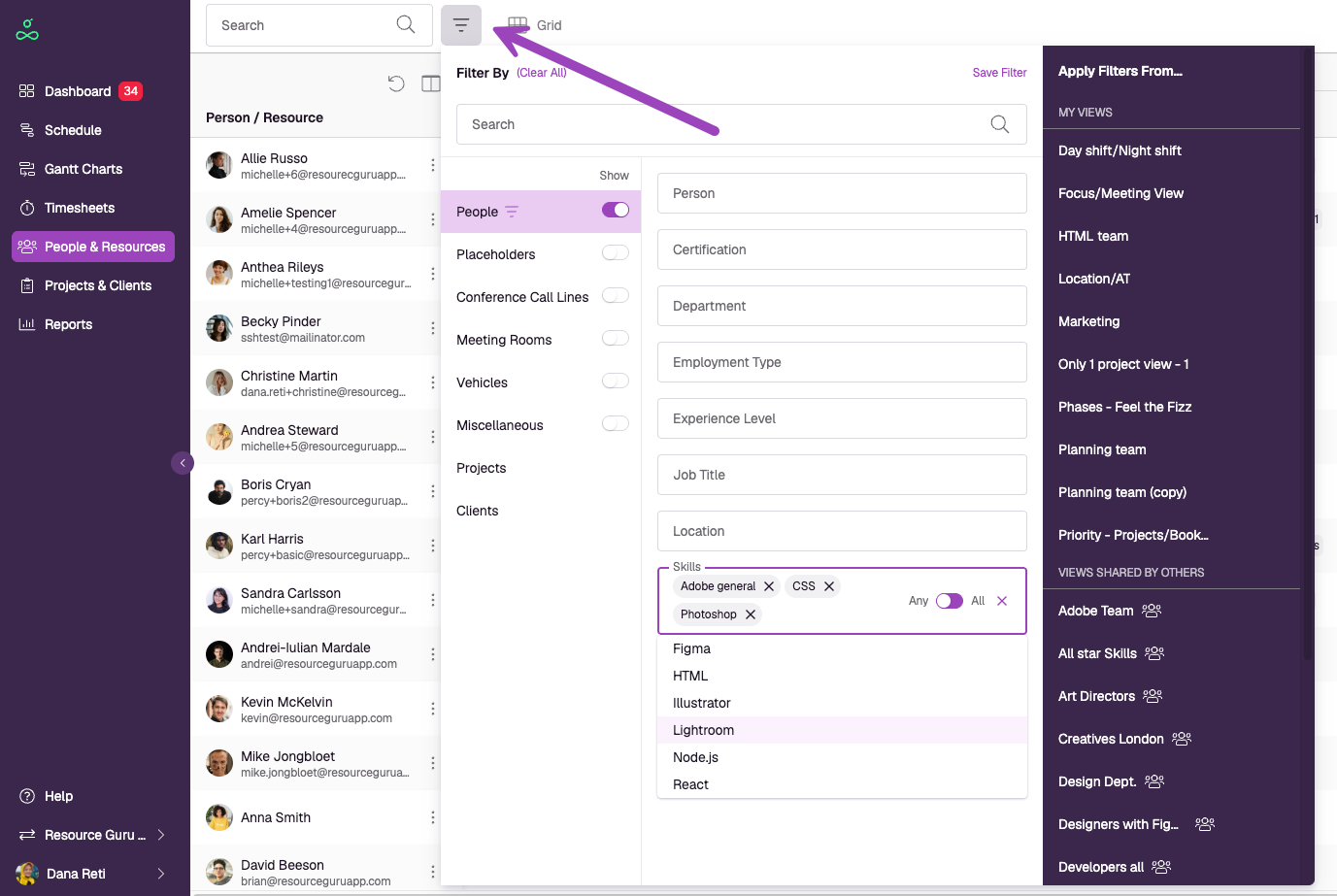
You can also use saved views that contain filters supported by People & Resources.
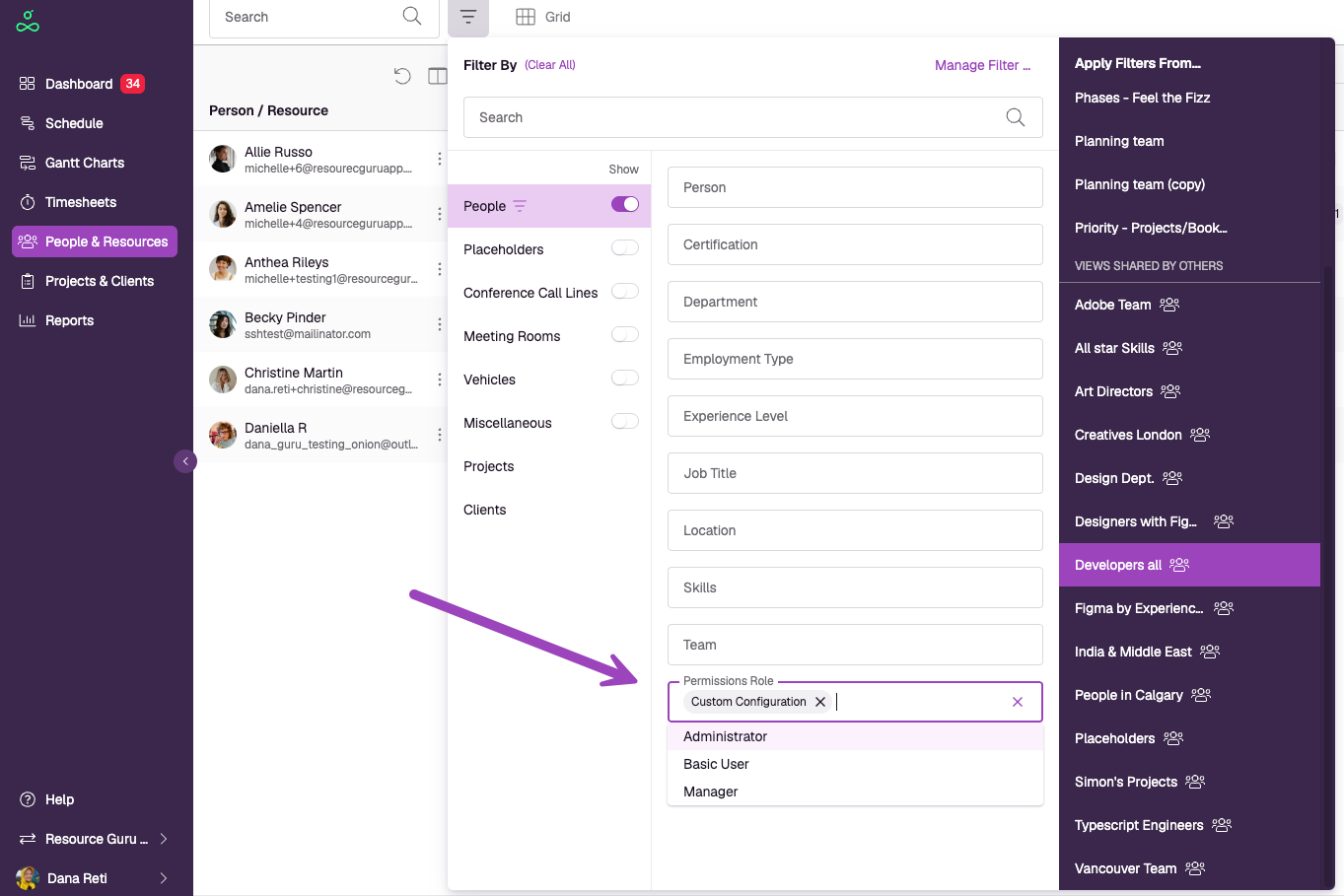
Filter by Permission Role
Under People, use Permission Role to select one or more roles. The results that show will include anyone who matches at least one of the roles you've selected.
Manage Columns
In table view, select Manage Columns to show or hide columns. By default, every column you have access to is shown.
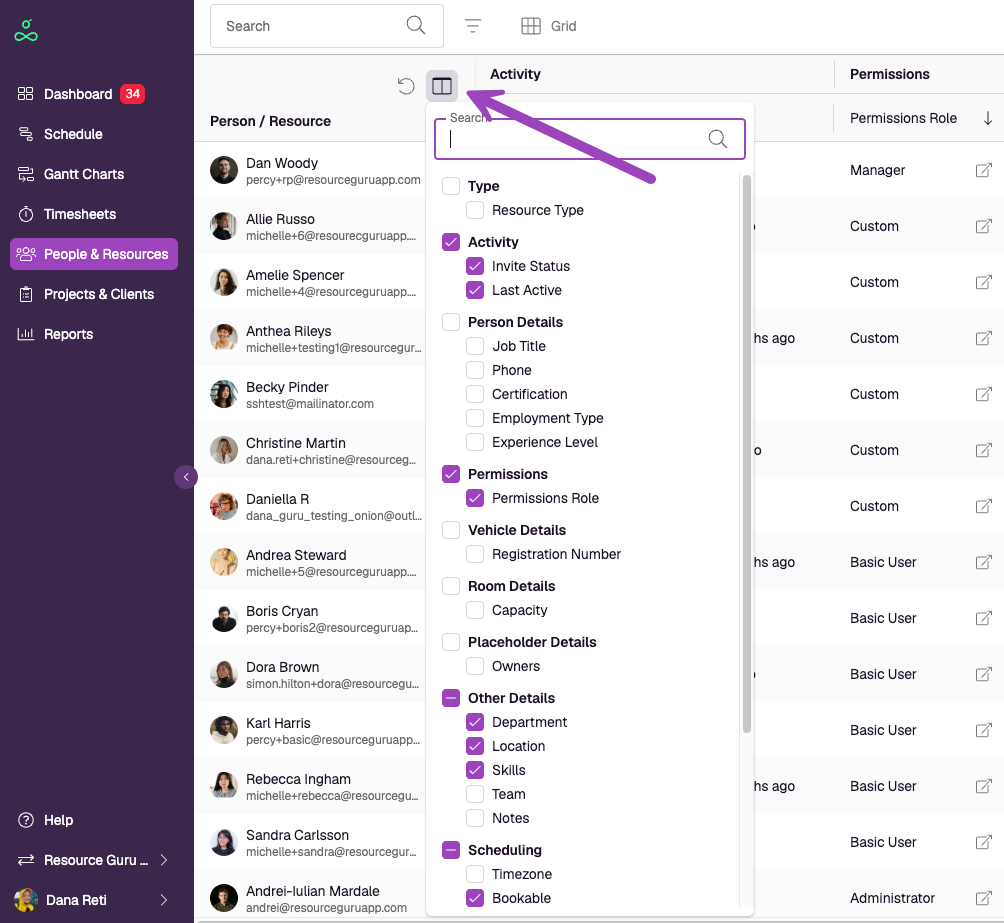
Your column choices are saved locally too, and you can reset the table to its default columns at any time.
A couple of things to know:
Columns can't be reordered
Columns you don't have permission to see aren't available to add
Edit Fields in the Table
Where a field supports it, click a cell to edit it directly:
Text fields save when you click out of the cell
Dropdowns save as soon as you select a value
Toggles save immediately
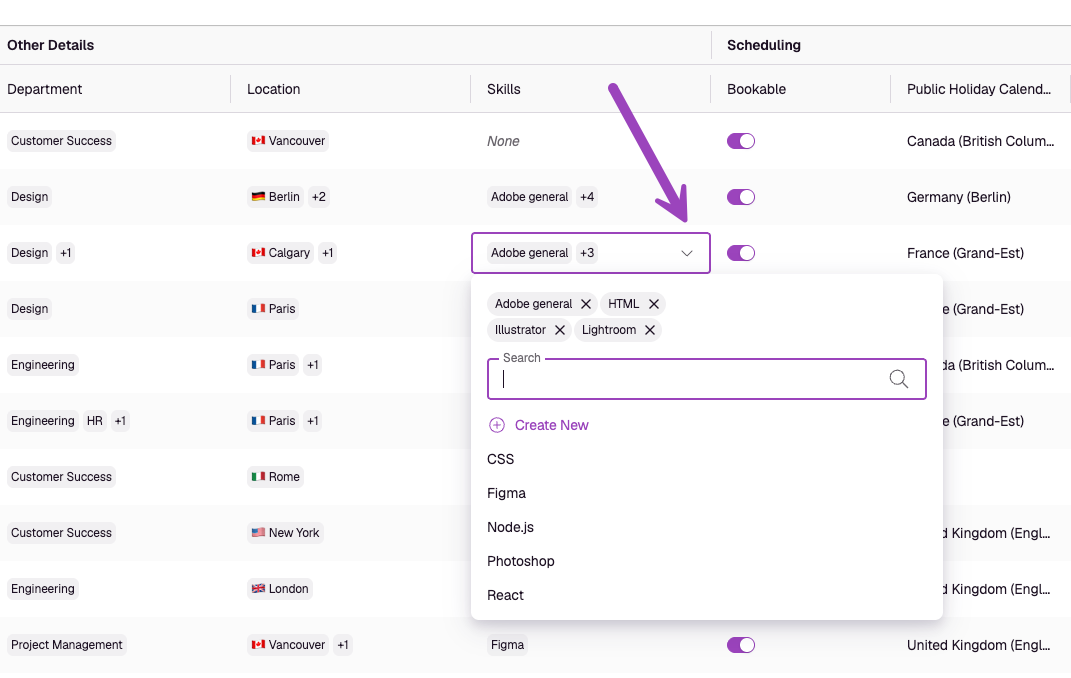
You can only edit the fields you have permission to edit — everything else stays read-only. Validation, warnings, and confirmation steps work exactly the same way as they do in the People & Resource profile cards.
Guru tip
Table View is the quickest way to tidy up details across lots of people at once. For example, after a bulk import, or when job titles change across a team. They let you sort by the column you want to update and work down the list, without needing to open each profile.