Connect Resource Guru to AI tools with our MCP server
Resource Guru's MCP server allows MCP-compatible AI tools to access your Resource Guru data and context through a secure, read-only connection.
Authentication is handled through Resource Guru's OAuth flow when you connect from your chosen AI tool.
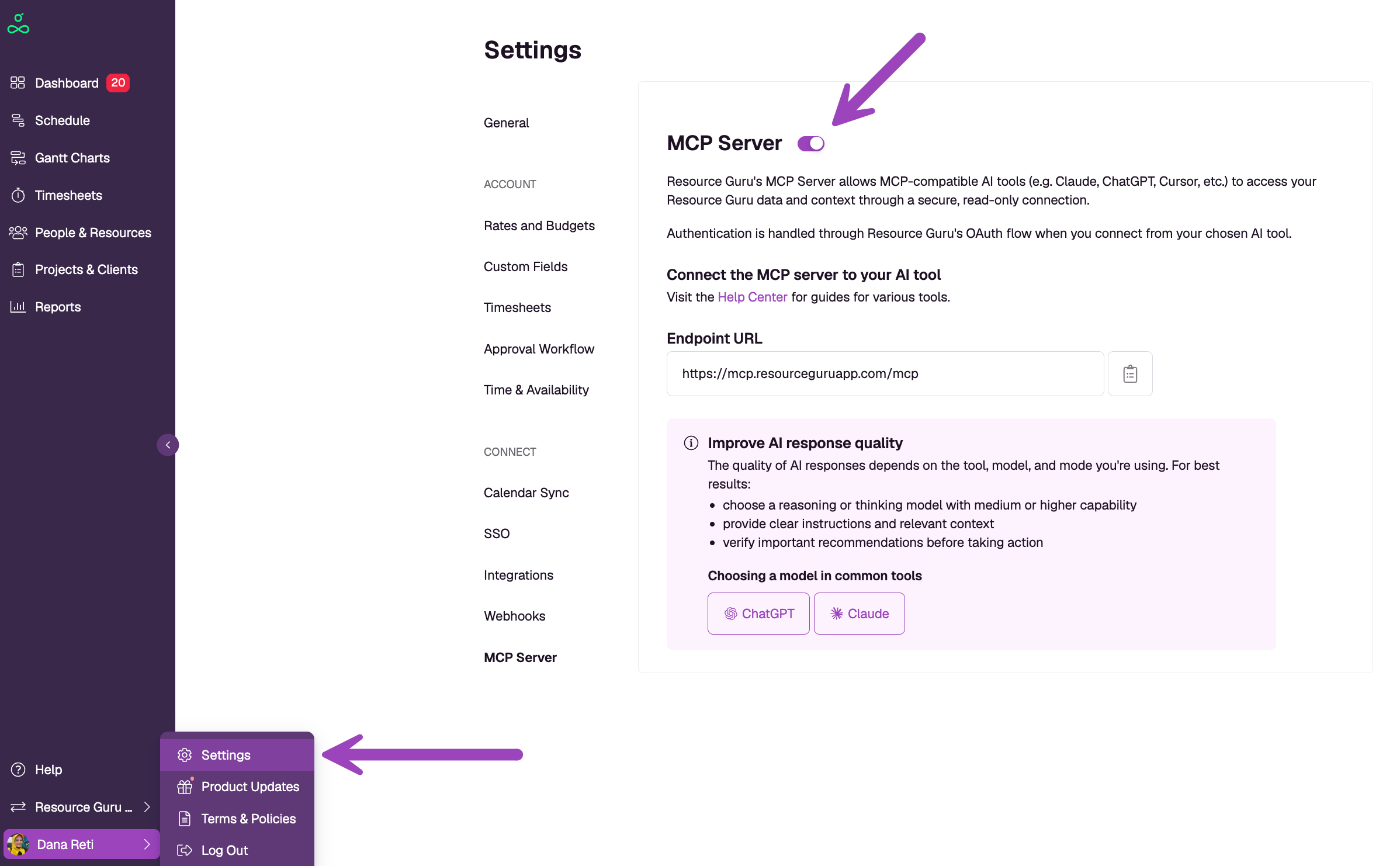
Enabling the integration
Go to Settings → Integrations → MCP Server
Enable the MCP Server
Copy the Endpoint URL:
Supported tools
Resource Guru can be connected to any tool that supports remote MCP servers.
Popular examples include:
ChatGPT
Claude
GitHub Copilot
Cursor
Codex
Windsurf
Connect your tool
Each AI tool has its own setup process.
To connect Resource Guru:
Open your tool's MCP or connectors settings
Add a new remote MCP server
Enter the Resource Guru endpoint URL
Complete the Resource Guru OAuth sign-in flow
Start using Resource Guru data with your AI tool
Refer to your tool's documentation for detailed setup instructions.
ChatGPT
OpenAI documentation:
https://platform.openai.com/docs/mcp
Claude
Anthropic documentation:
https://platform.claude.com/docs/en/agents-and-tools/remote-mcp-servers
GitHub Copilot
GitHub documentation:
https://docs.github.com/en/copilot/concepts/context/mcp
Cursor
Cursor documentation:
Example questions
Once connected, you can ask questions such as:
Who has availability next week?
Which projects are currently over budget?
Show upcoming time off for the design team.
Summarize utilization across the engineering department.
Which team members have the most remaining capacity this month?
Hints and tips
Improve AI response quality
The quality of AI responses depends on the tool, model, and mode you're using. For best results:
choose a reasoning or thinking model with medium or higher capability
provide clear instructions and relevant context
verify important recommendations before taking action
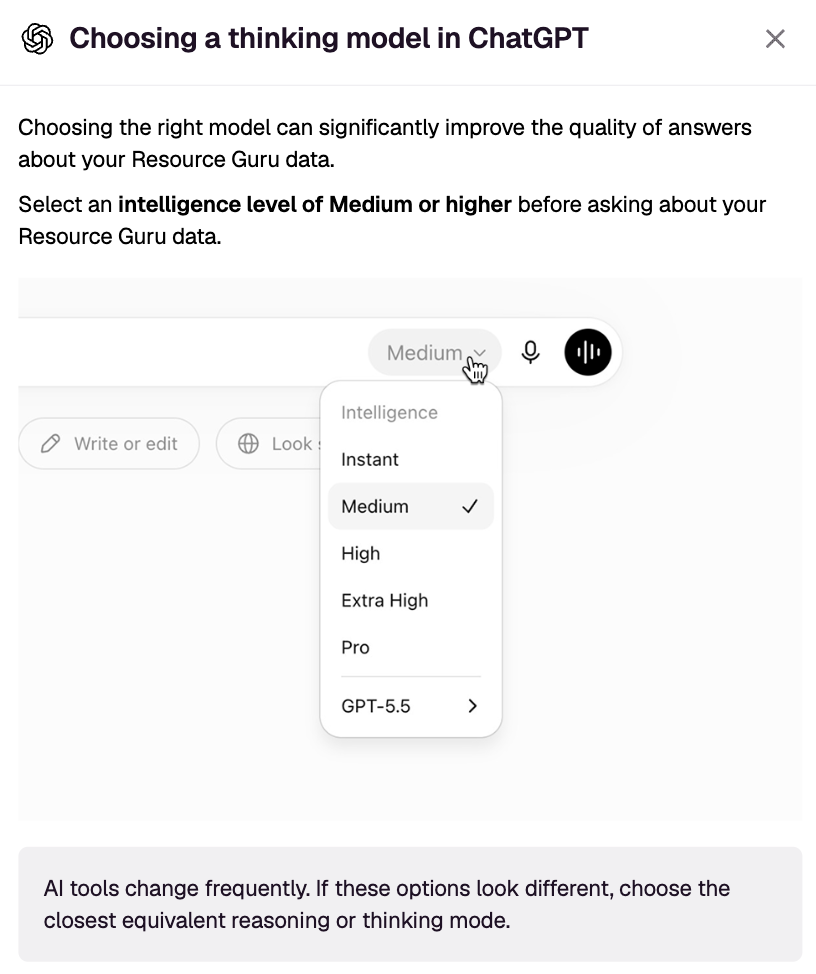
Choosing a thinking model in ChatGPT
Choosing the right model can significantly improve the quality of answers about your Resource Guru data.
Select an intelligence level of Medium or higher before asking about your Resource Guru data.
Enabling thinking in Claude
Turn Thinking on and choose an Effort level of Medium or higher before asking about your Resource Guru data.
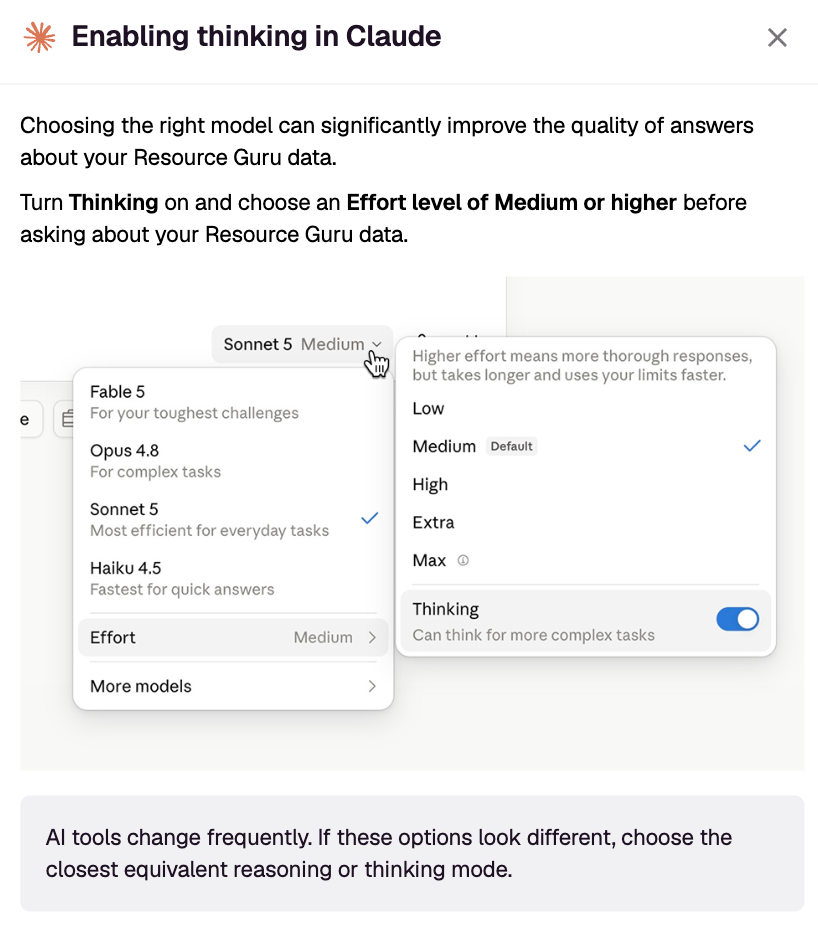
Please note: AI tools change frequently. If these options look different, choose the closest equivalent reasoning or thinking mode.
Writing better prompts
If you have access to multiple Resource Guru accounts, specify which account you want the AI tool to use. This helps it retrieve and analyze data from the right place. You can check which accounts you have access to by following the steps in this article.
Break large planning or forecasting tasks into smaller questions. Instead of asking "Who should I assign to this project?", first identify people with availability, then narrow the list by role, skills, or location.
Be as specific as possible about the people, projects, departments, dates, skills, or metrics you want to analyze.
Ask for a specific output format, such as a table, summary, or prioritized list.
Ask the AI to explain its recommendations so you can review the reasoning and the underlying data.
AI-generated responses may occasionally be incomplete or inaccurate. Verify important recommendations in Resource Guru before making scheduling or staffing decisions.
Troubleshooting
Authentication failed
Check that:
The MCP Server is enabled in Resource Guru
You have access to the Resource Guru account
The OAuth sign-in process completed successfully
Connection failed
Check that:
The endpoint URL is correct
The MCP Server is enabled
Your AI tool supports remote MCP servers
Access stopped working
If an administrator disables the MCP Server:
New connections will be blocked
Existing authenticated sessions will be revoked
Re-enable the MCP Server and reconnect your tool.
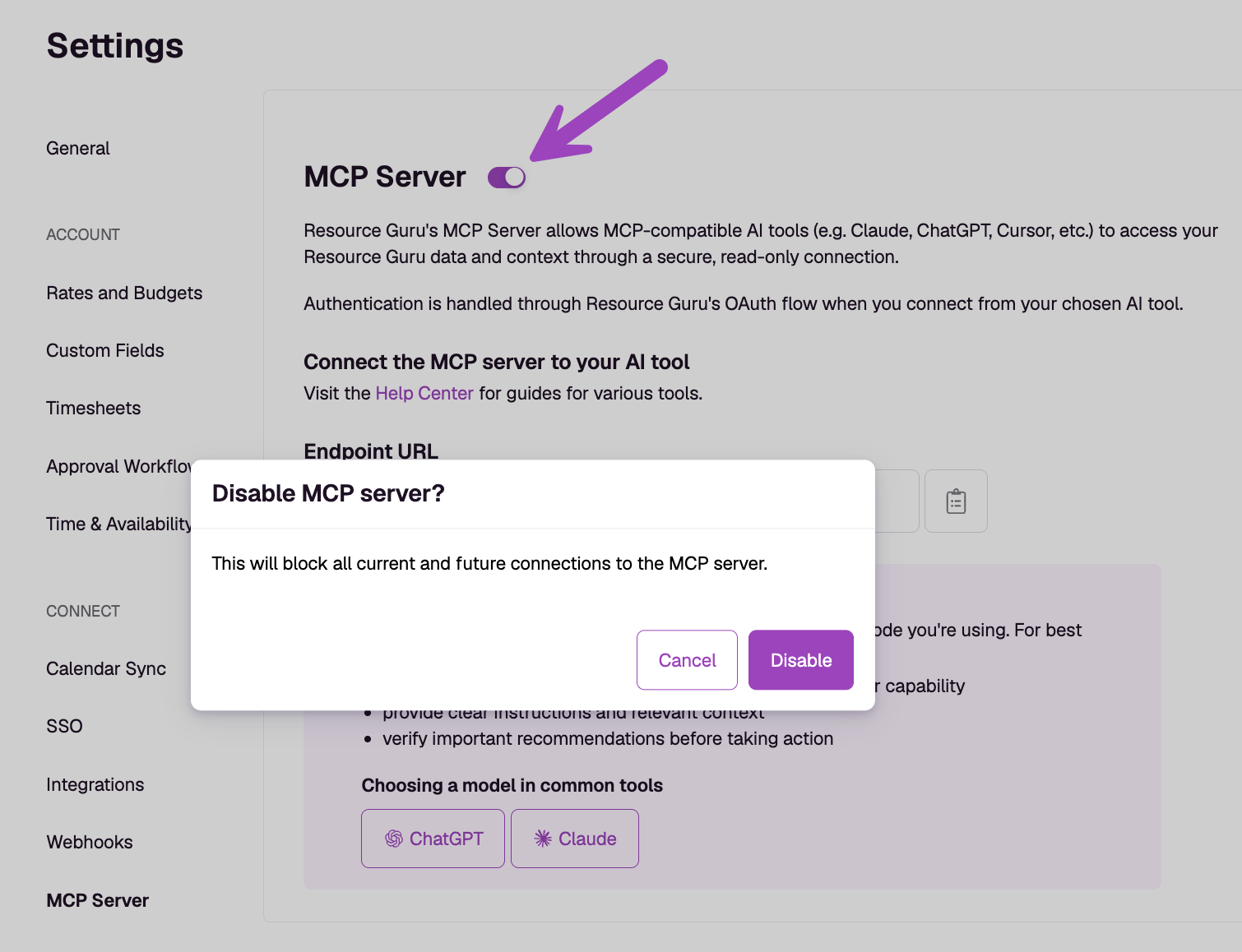
Disabling the MCP server
Click on the toggle at the top and confirm your action by clicking on Disable in the pop-up window.